AI product photographyfor Squarespace sites
Editorial-grade product imagery for Commerce PDPs, Fluid Engine hero blocks, gallery sections, and summary tiles — generated at Squarespace's actual display sizes.
Squarespace is design-forward. Your product photos should be too.
Squarespace attracts brands that care about design — interior labels, boutique fashion, specialty food, high-end service businesses. The templates are polished out of the box, but the moment a merchant uploads low-quality product photos, the whole site reads as amateur. Squarespace's Fluid Engine, gallery blocks, and Commerce PDPs all render images at display sizes between 1500 and 2500 pixels, and the platform auto-generates seven responsive variants on upload. That only works if the source is high-resolution and editorial. Snapsible was built for this tier of brand. Upload your product and generate studio-grade imagery at Squarespace's preferred dimensions: 2500x2500 for Commerce PDP mains, 2000x1500 for Fluid Engine banners, and 1500x1500 for gallery summary tiles. Your brand DNA is extracted from your Squarespace site URL — colors, typography, tone — and applied to every generation. The result is PDPs, hero blocks, and blog feature images that look like they came from a boutique photographer, not a stock library.
Squarespace aspect ratios & image specs
Snapsible generates at the exact ratio each slot expects — no after-the-fact cropping.
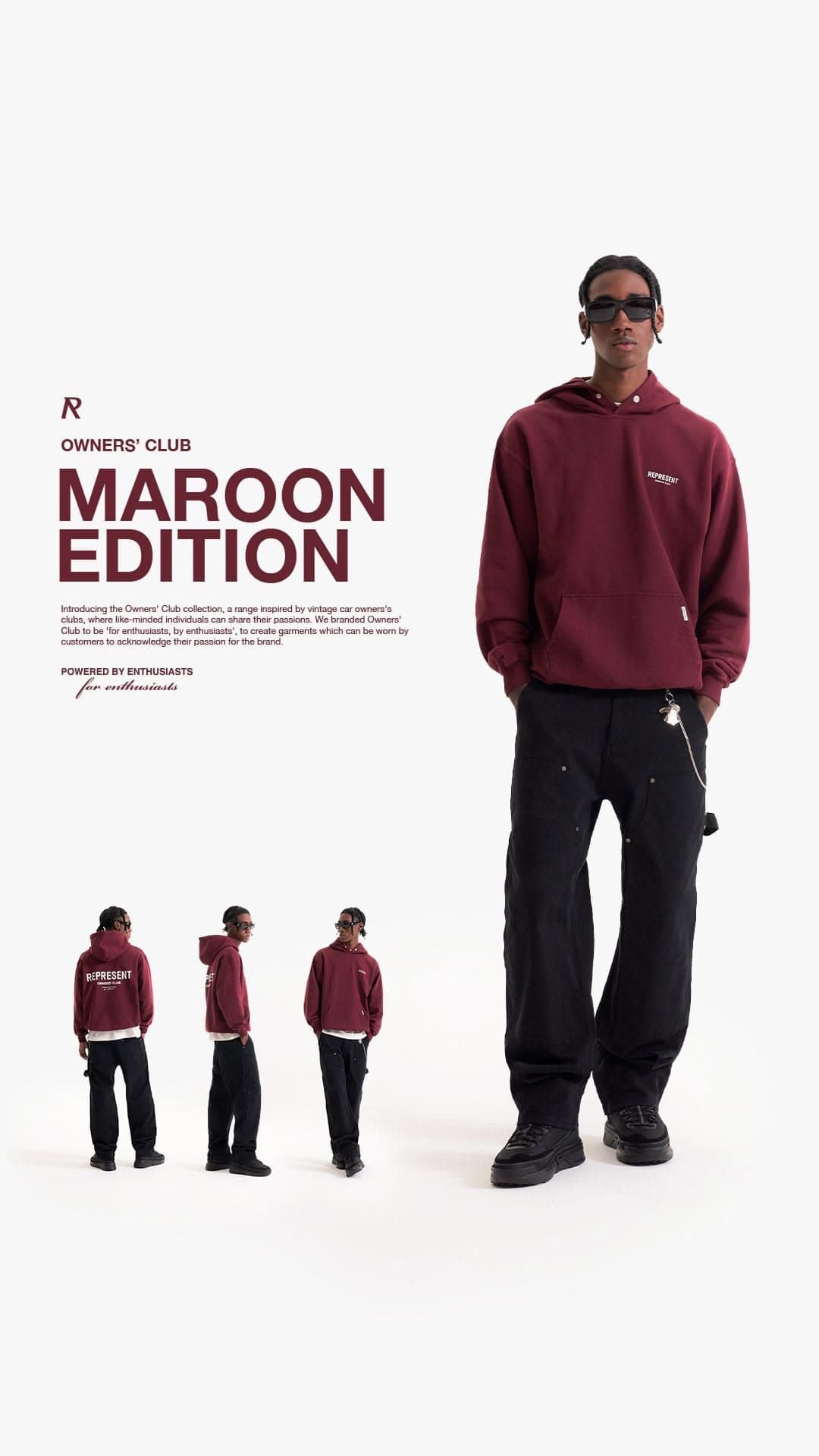
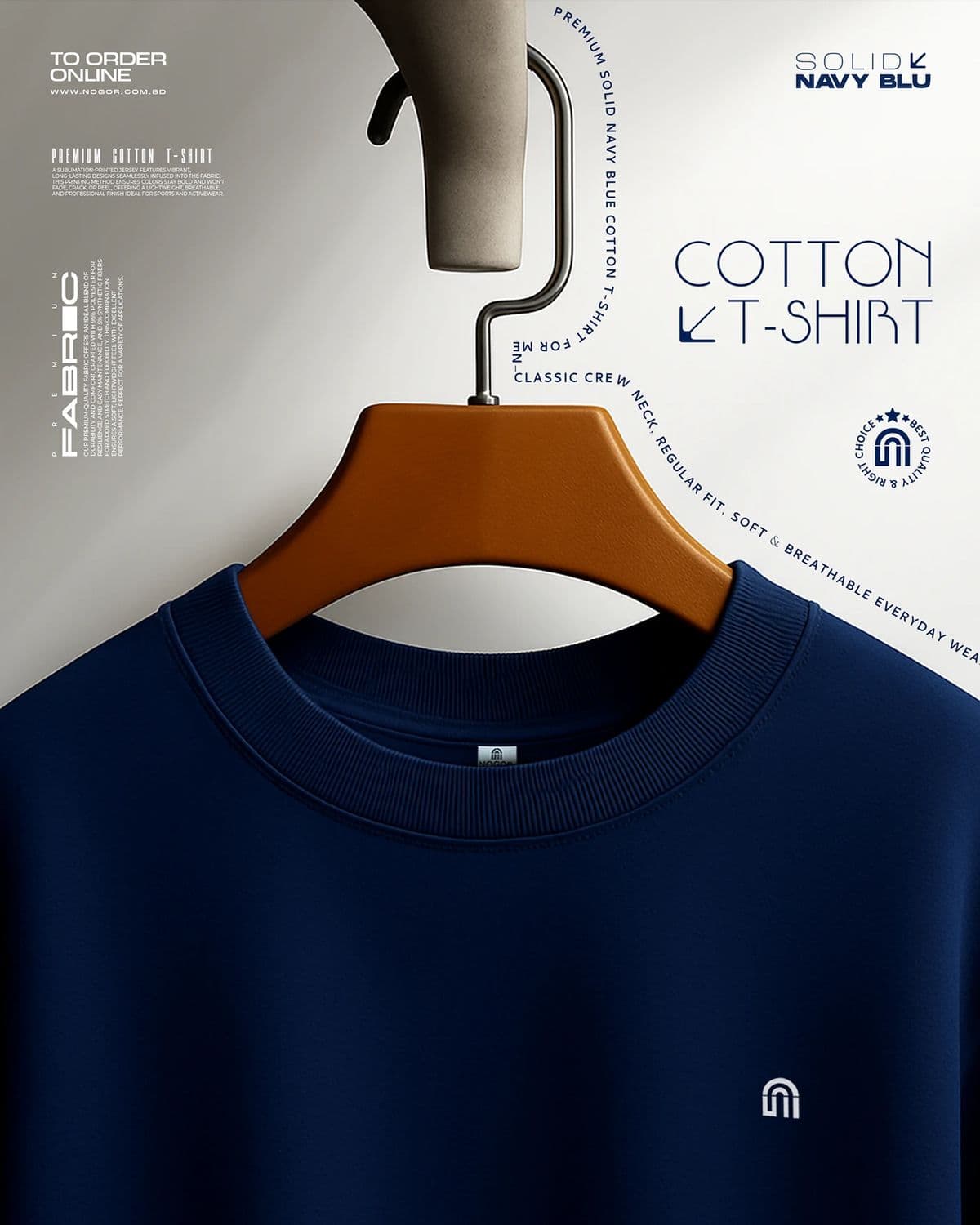
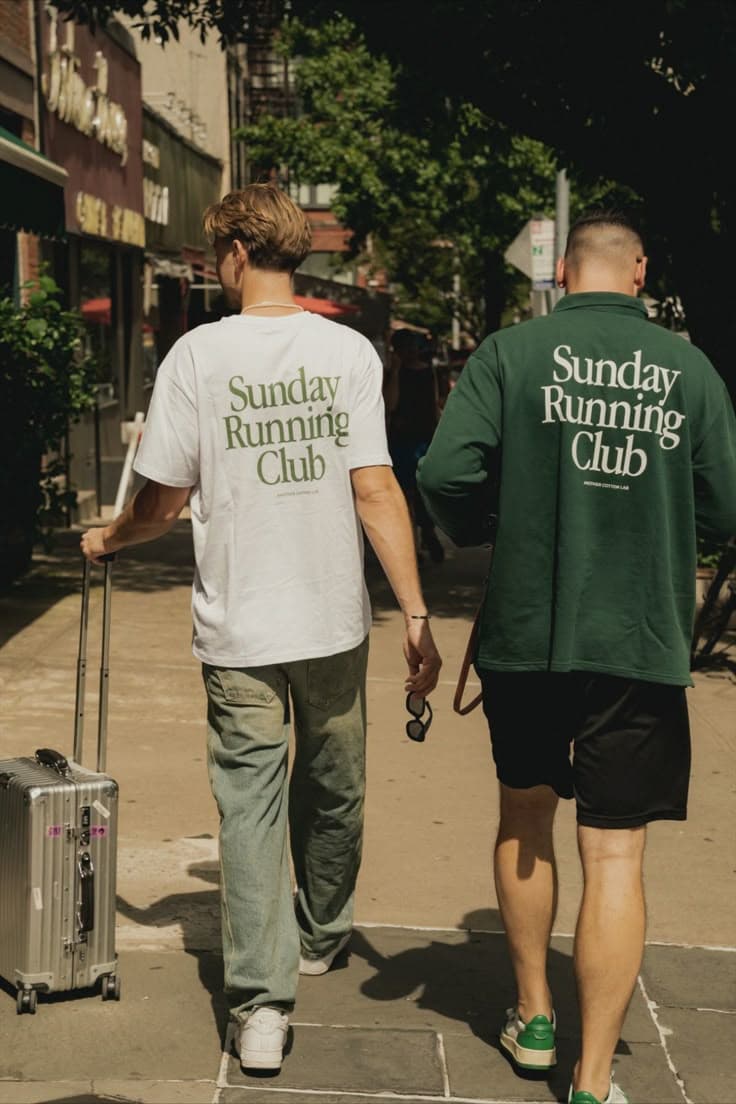
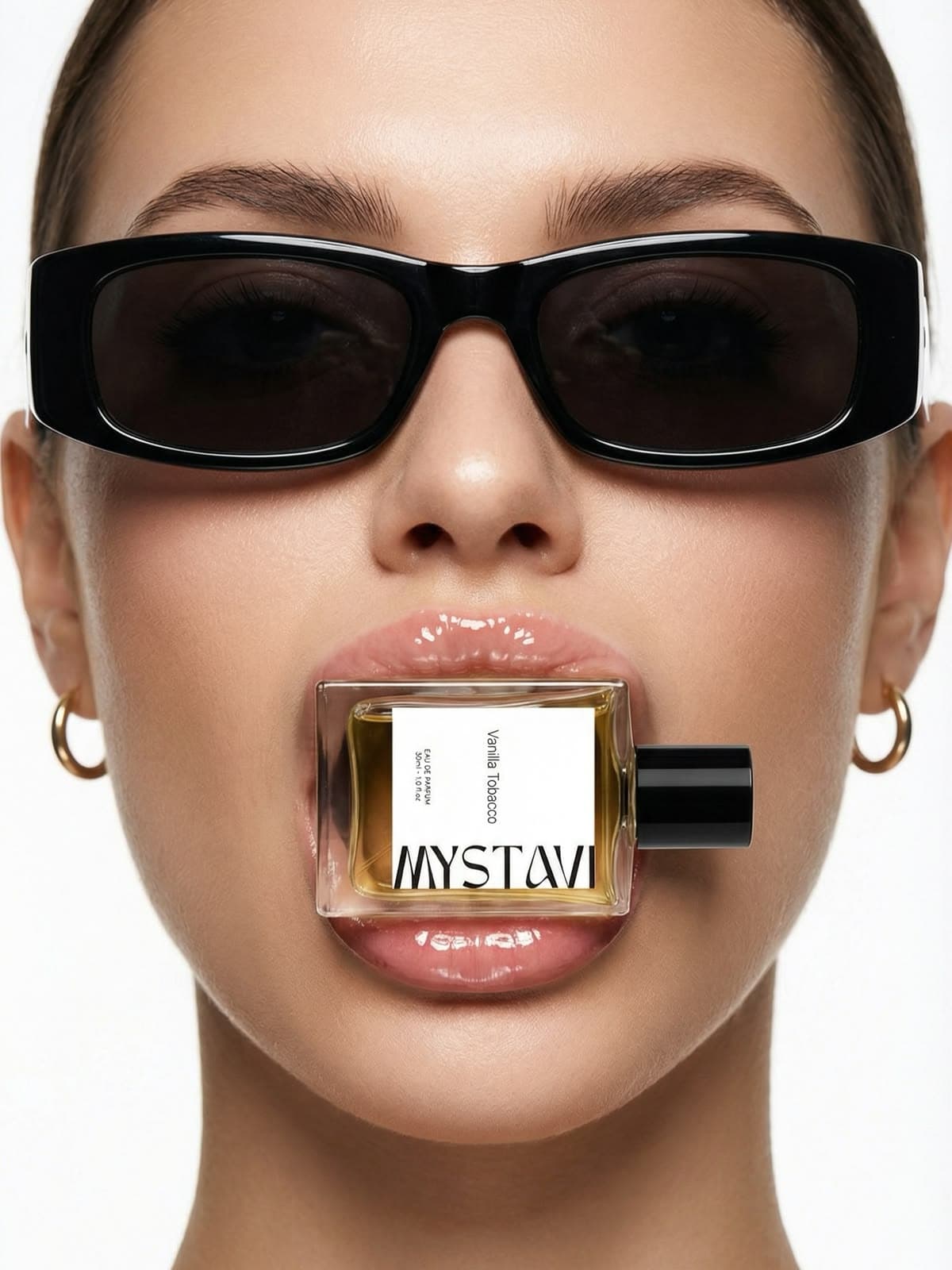
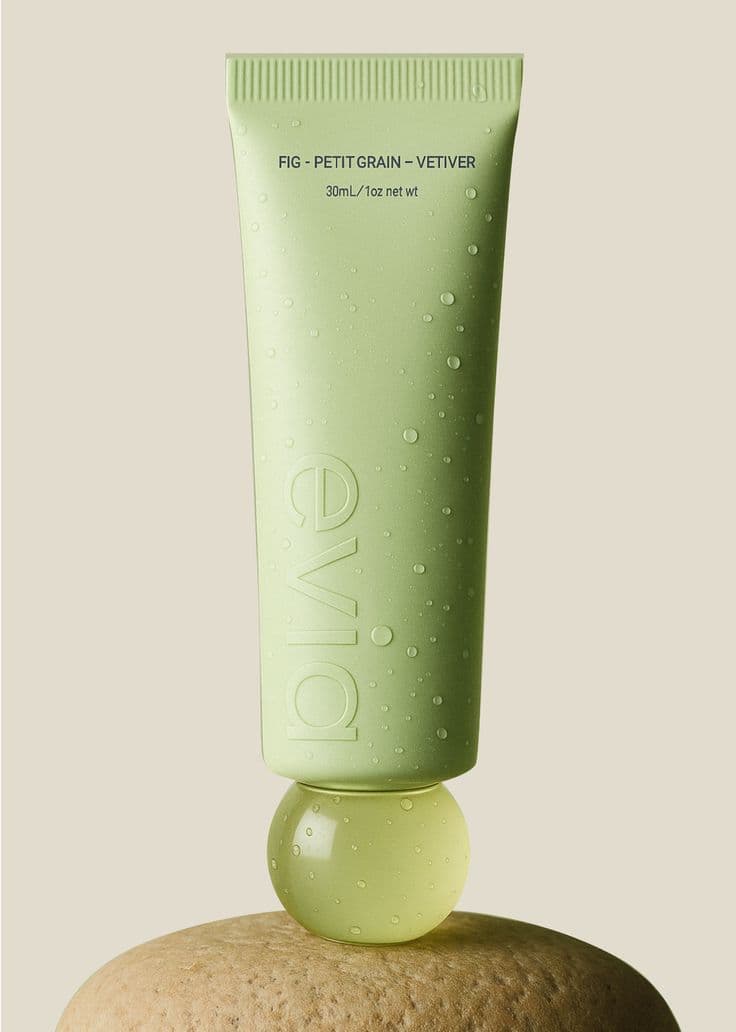
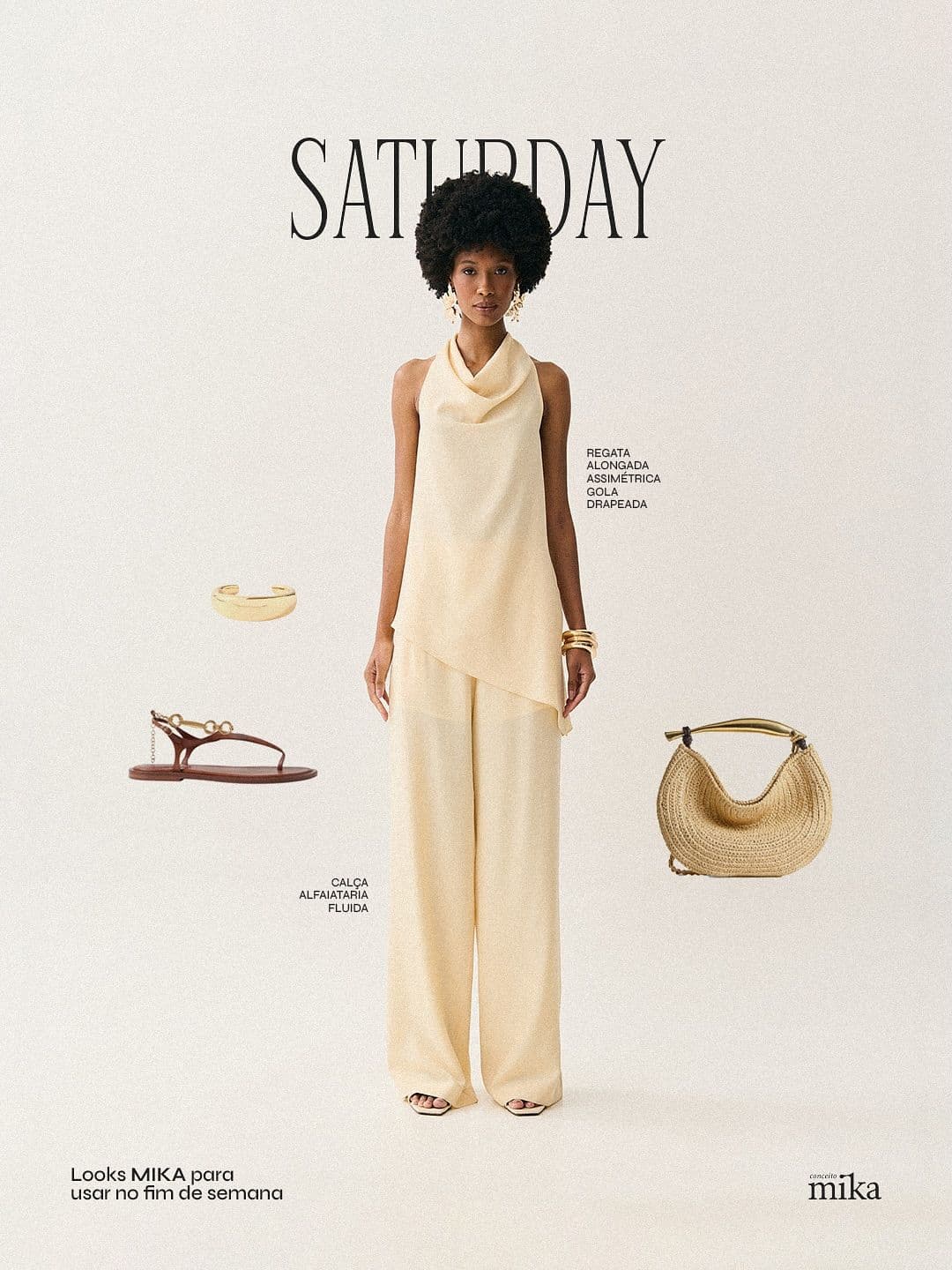
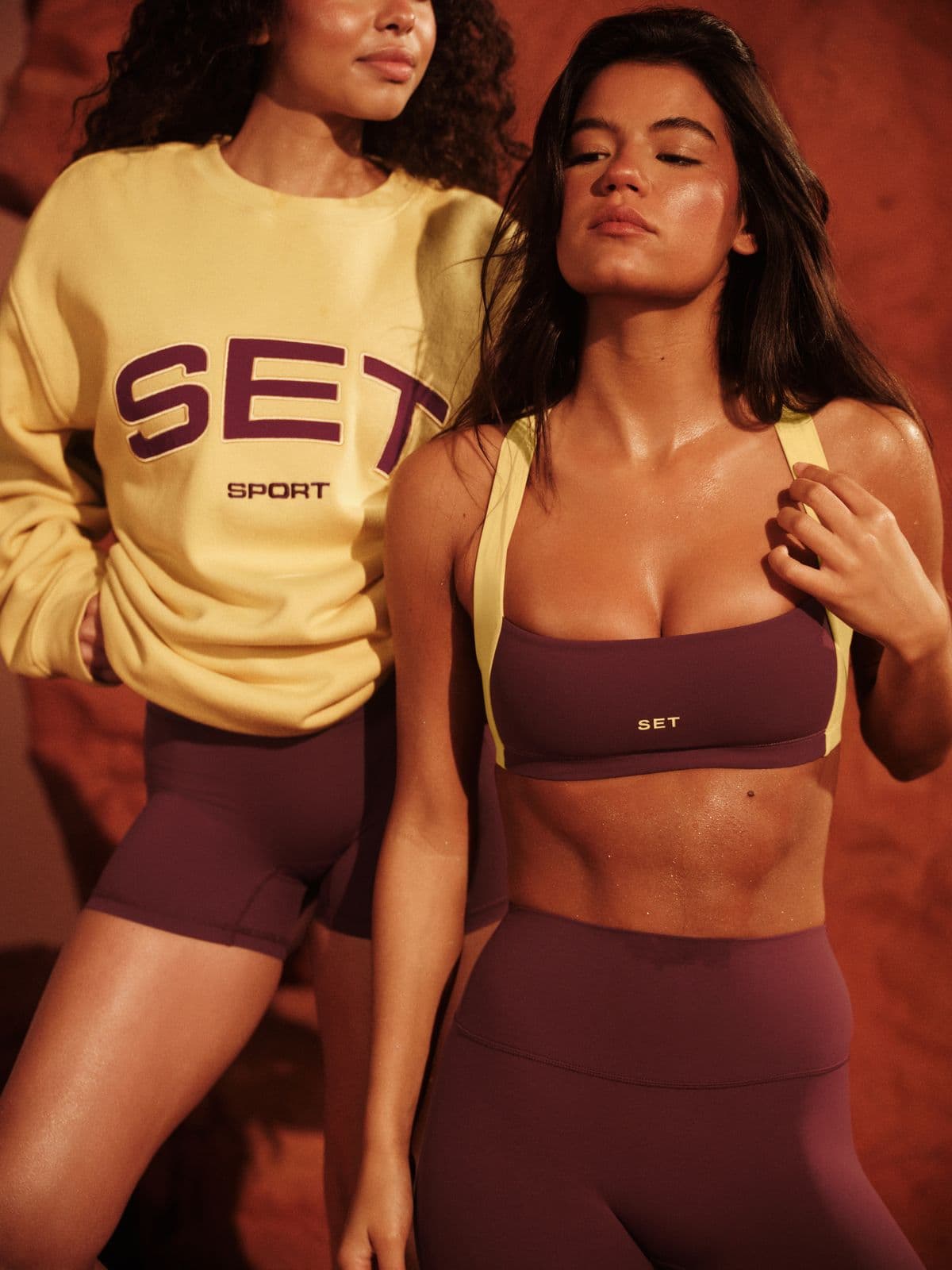
AI-generated. Studio quality.
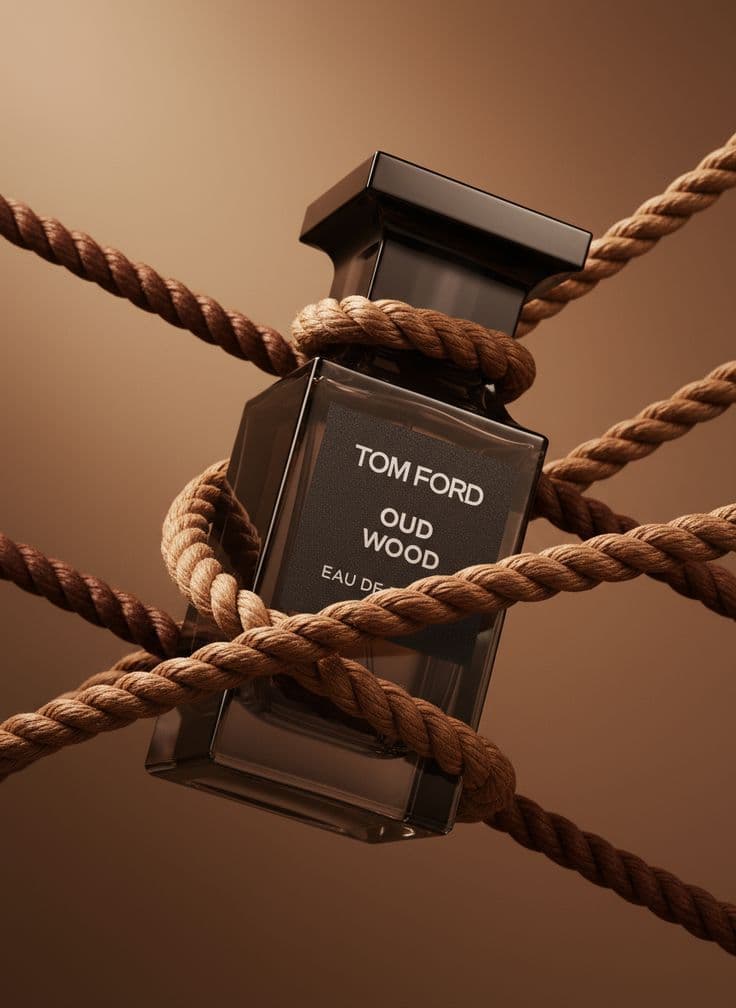
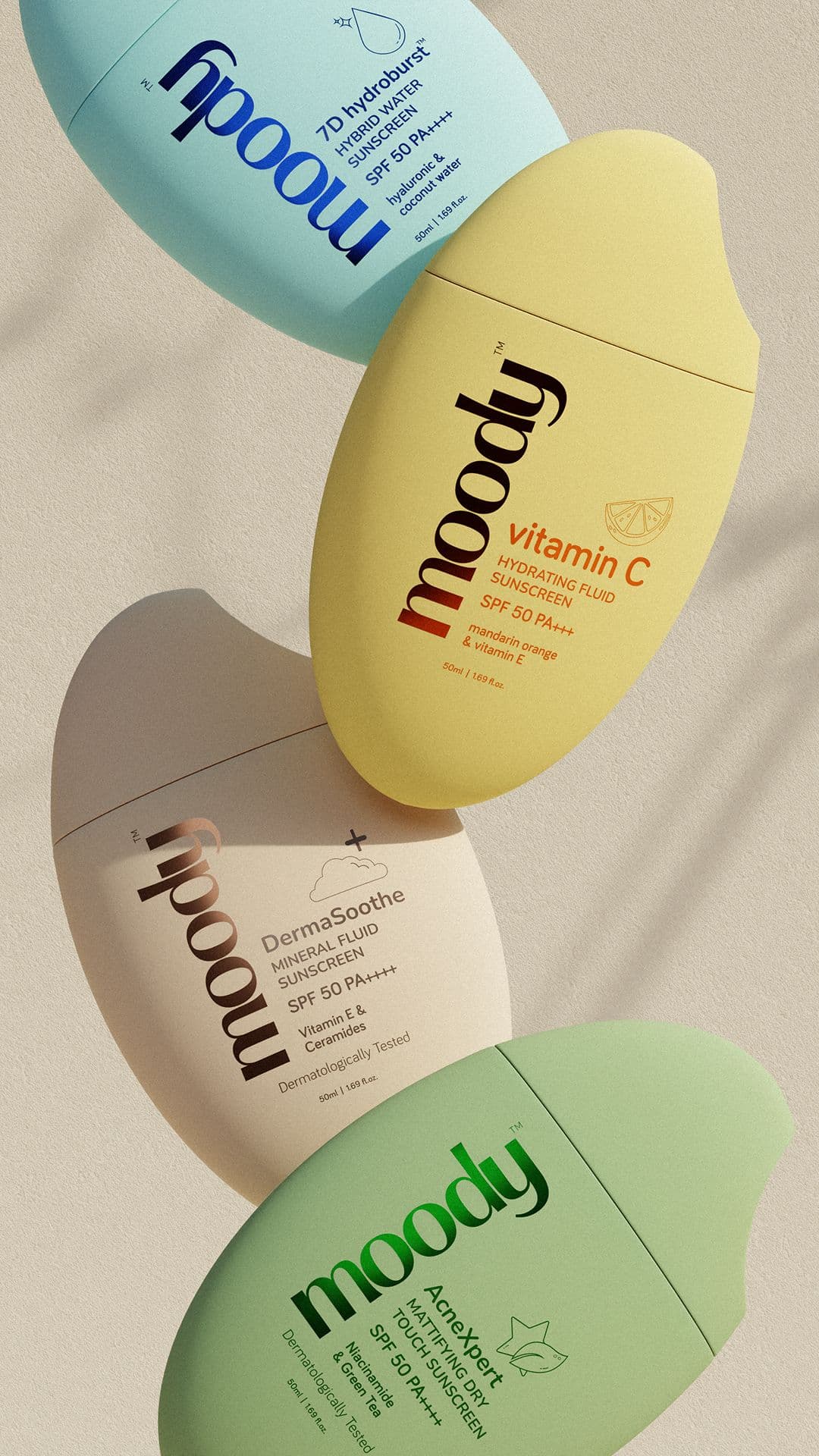
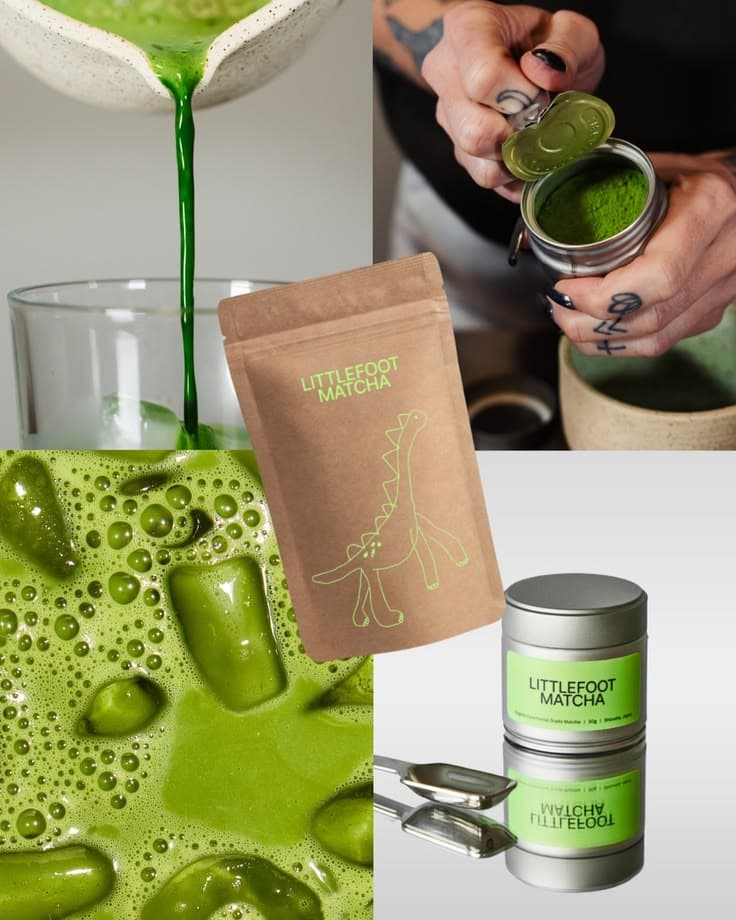
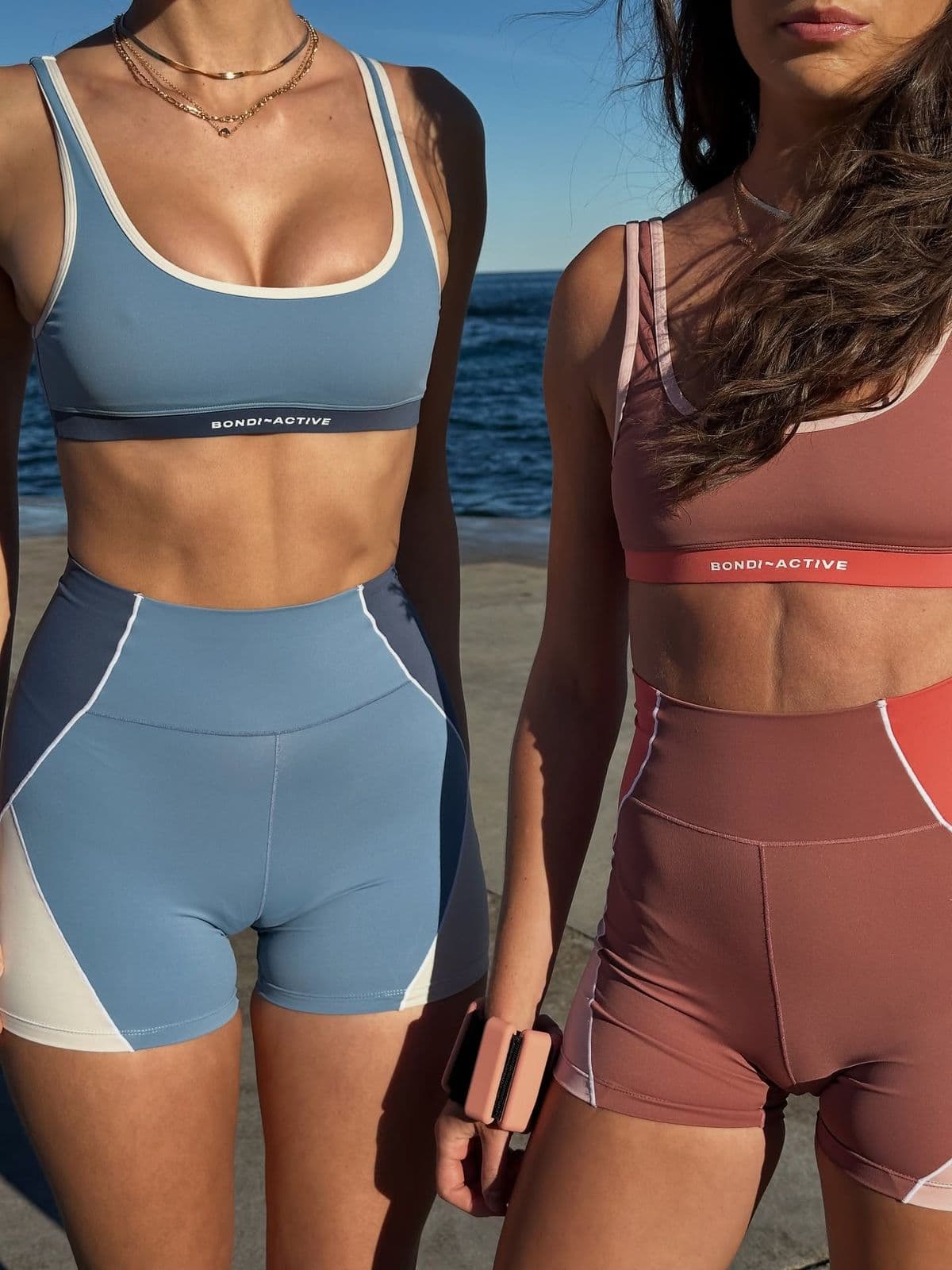
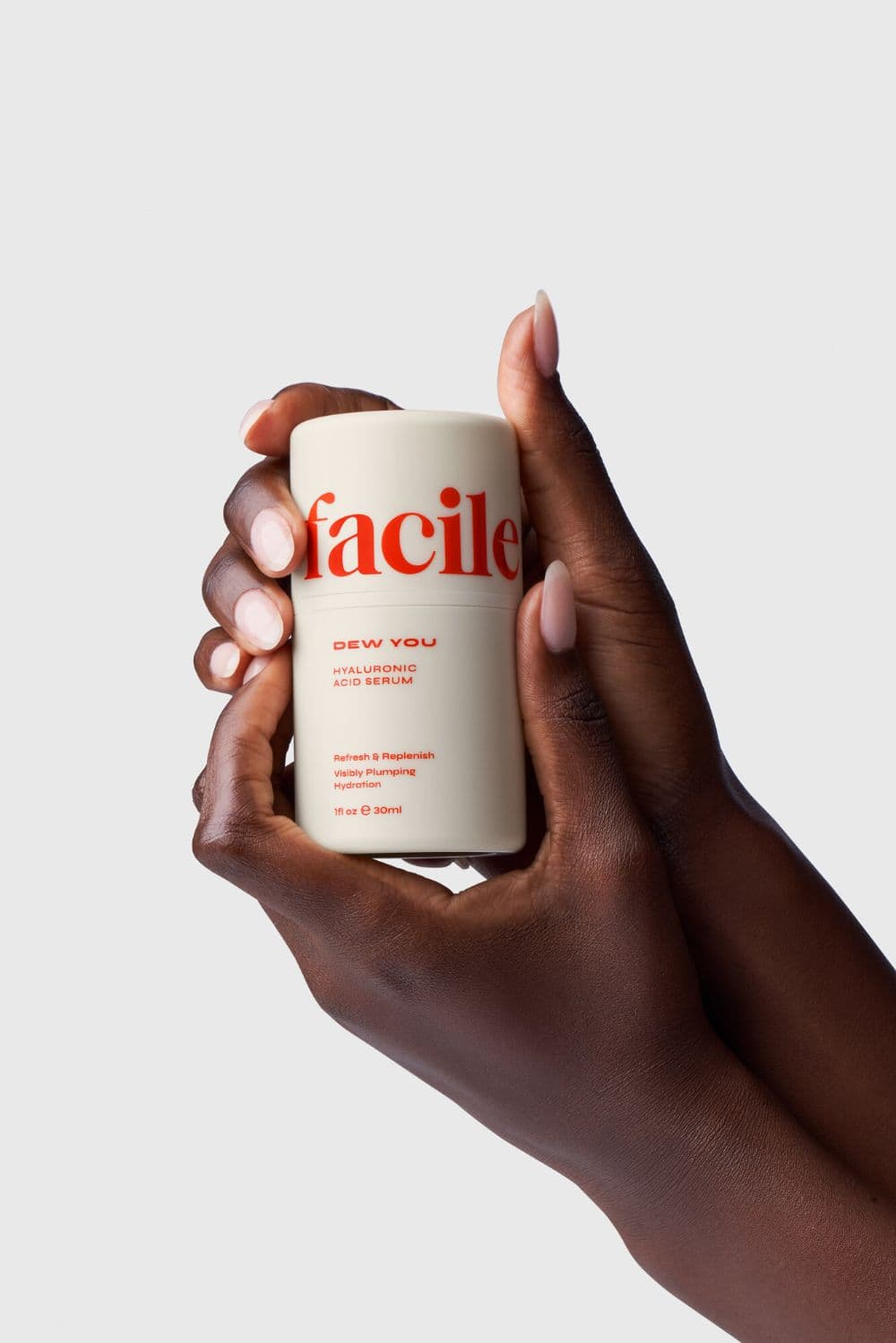
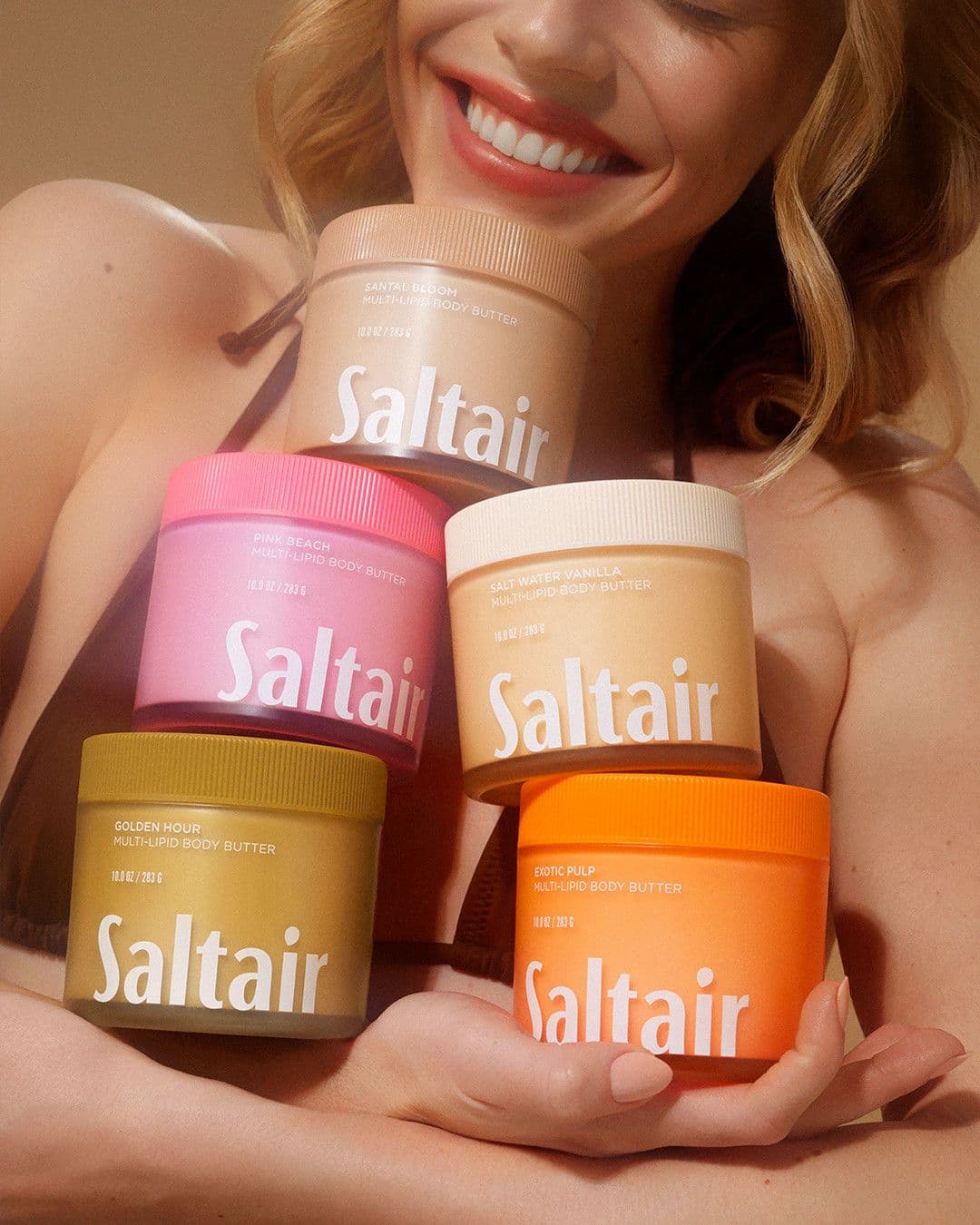
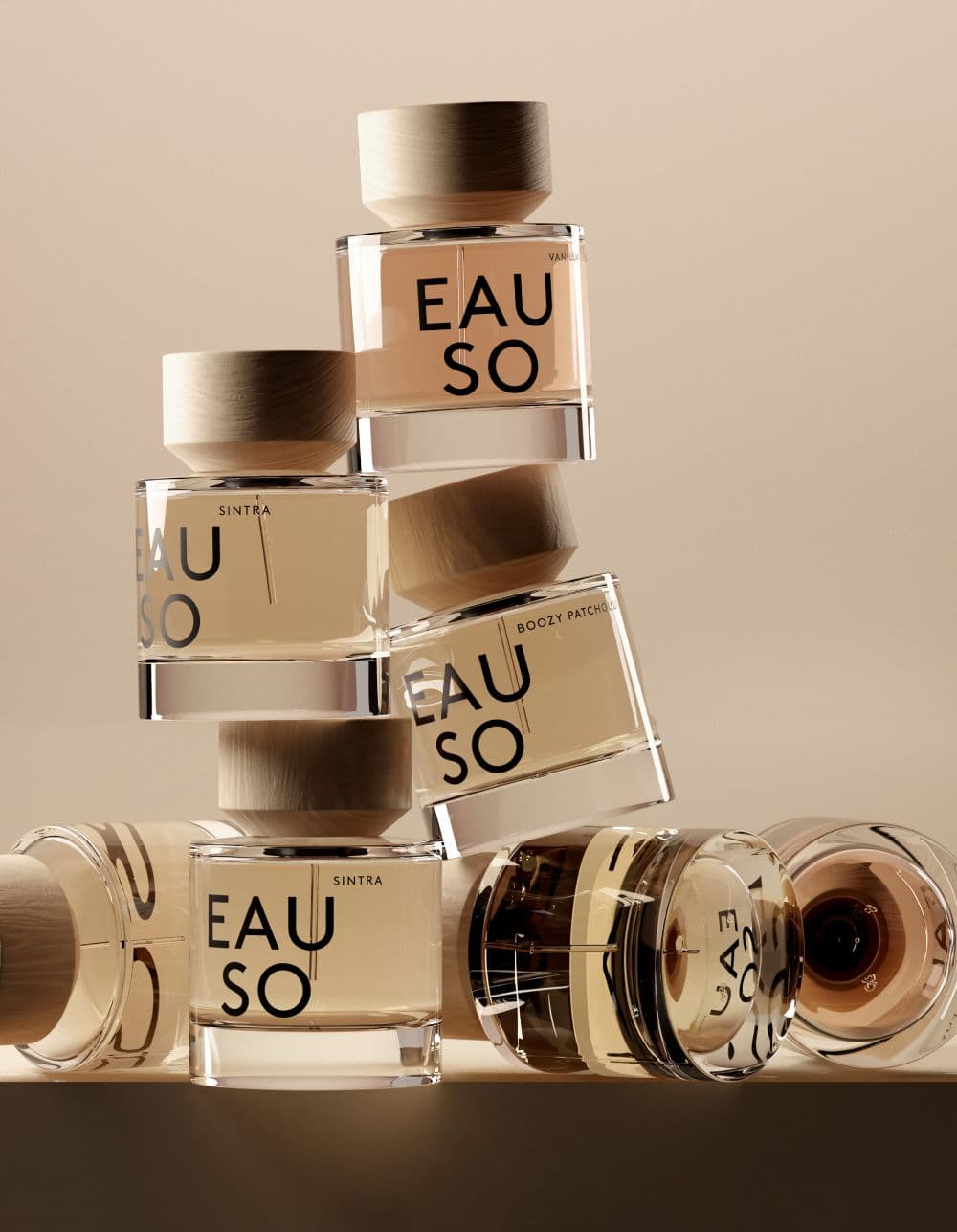
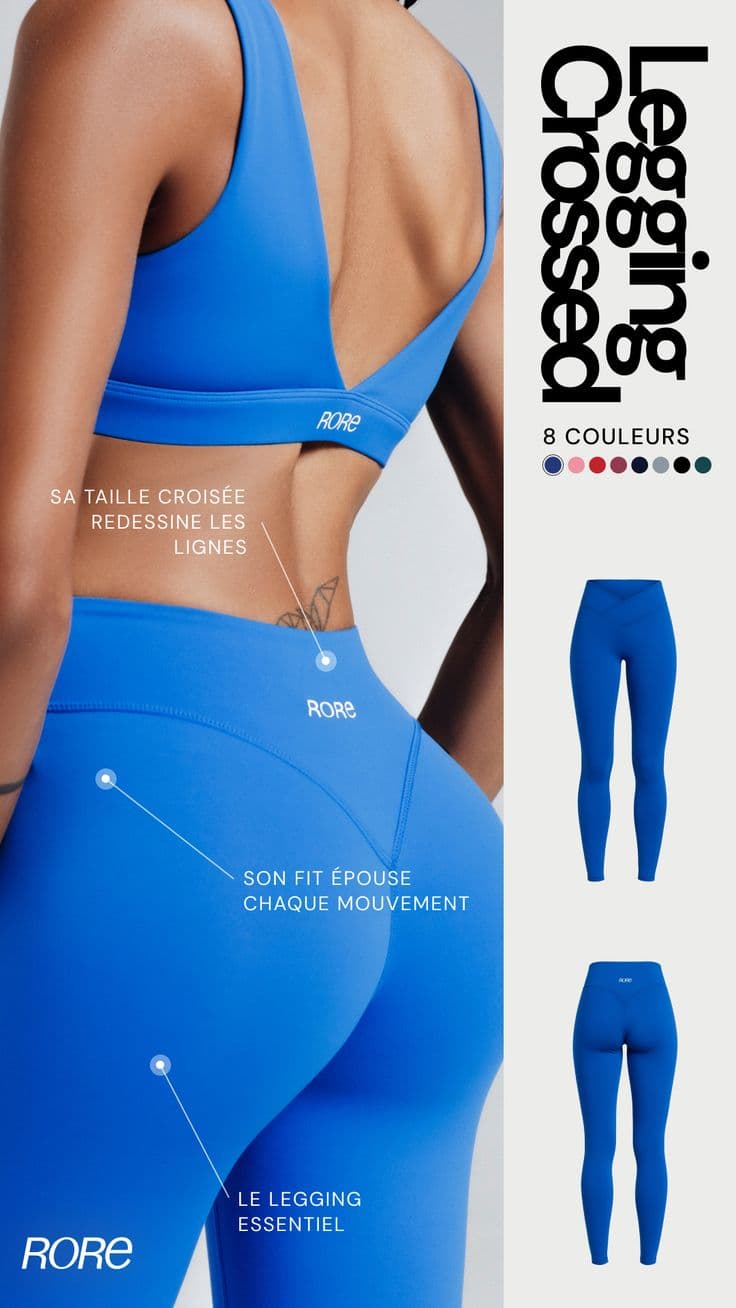
Every image below was generated in seconds. No photographer, no studio, no retouching.
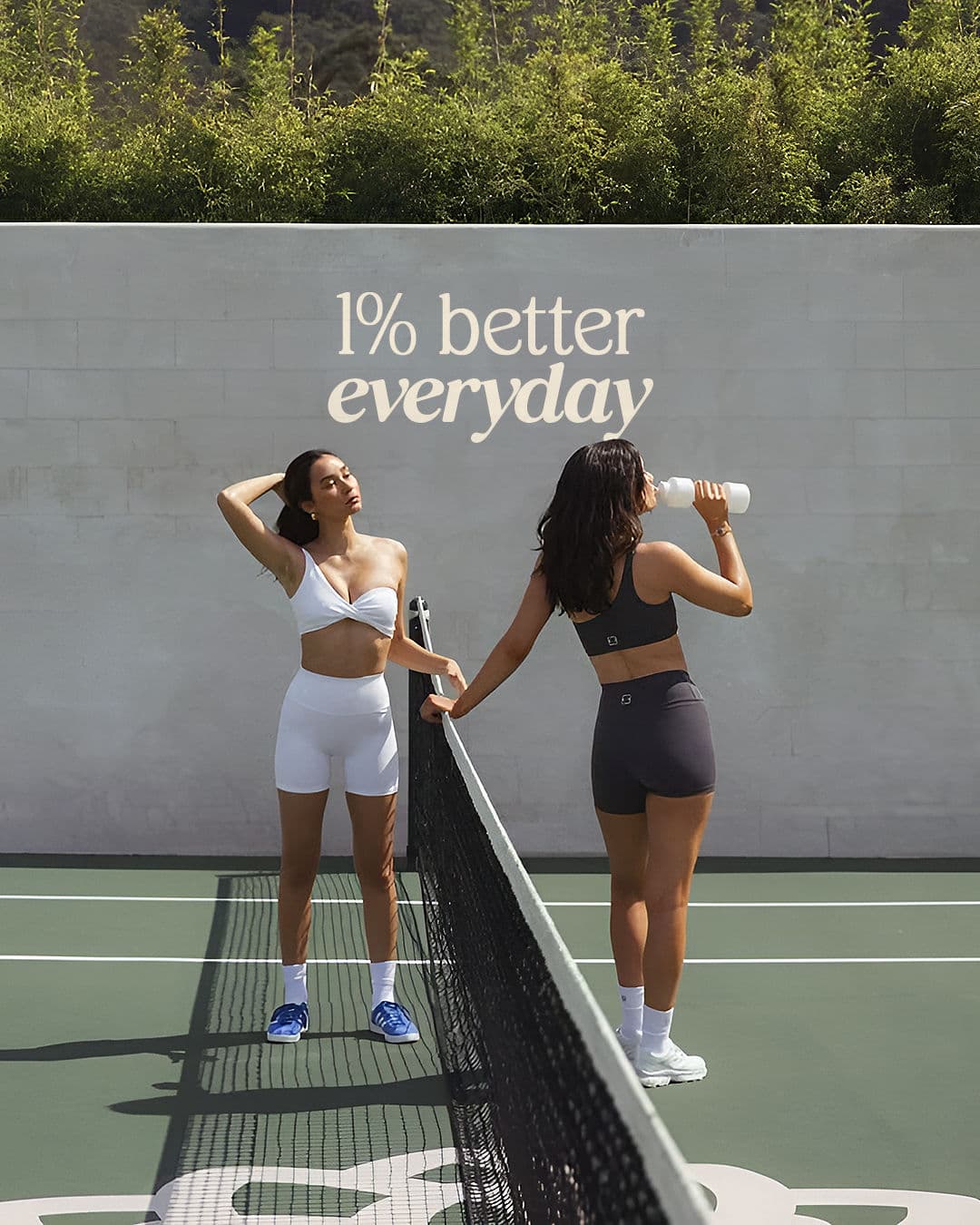

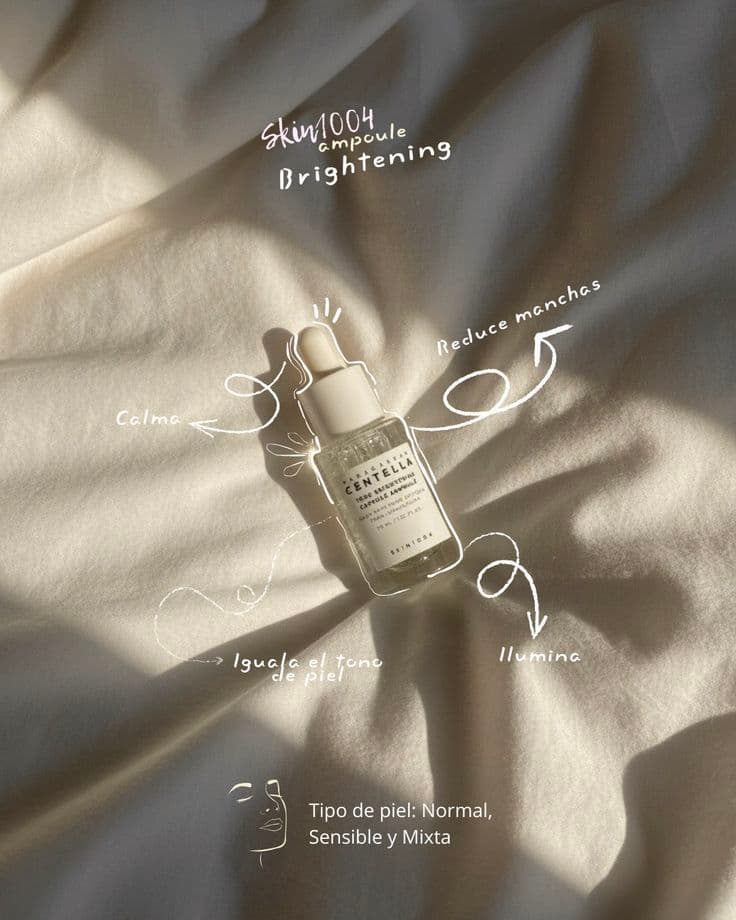
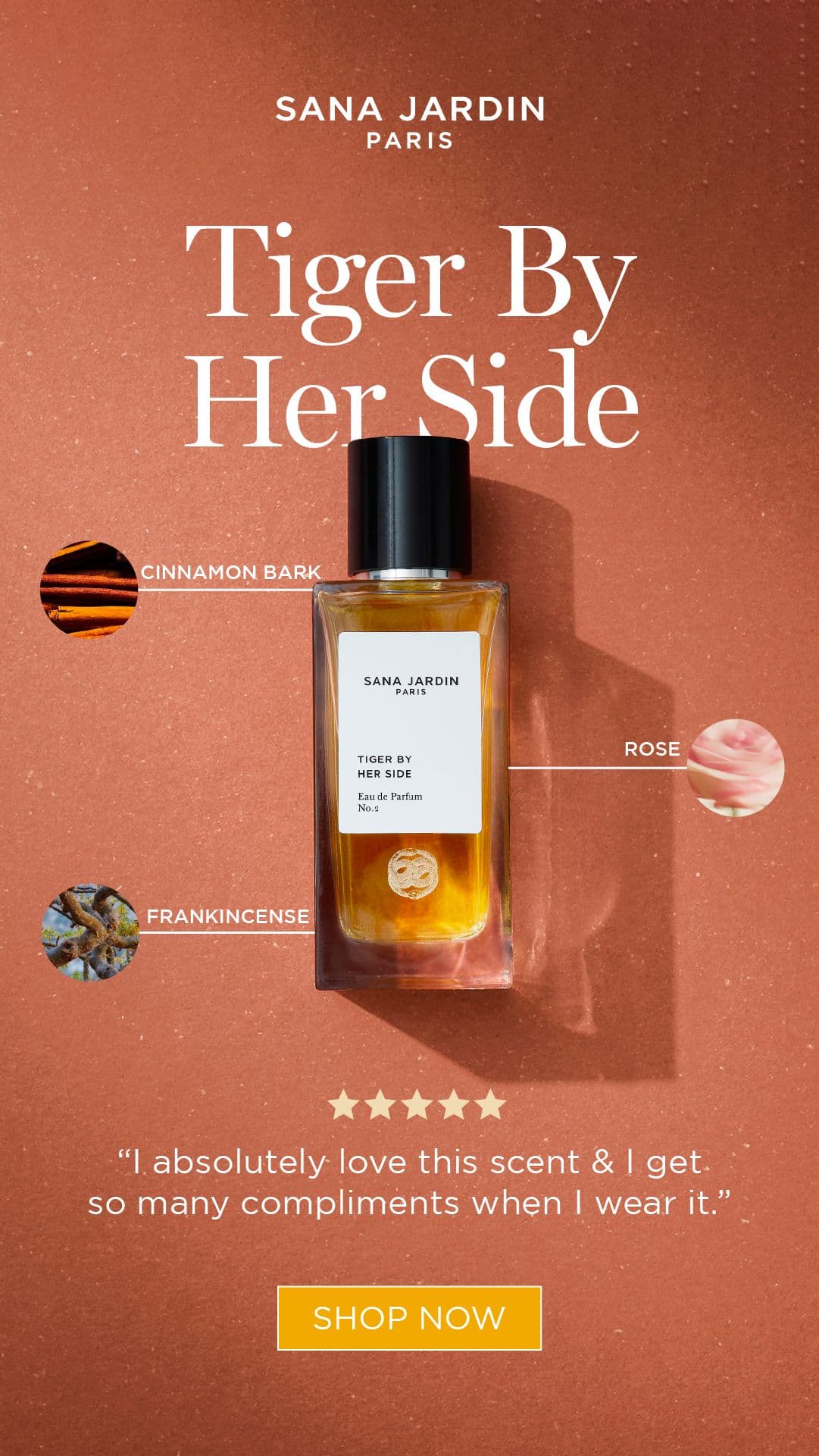
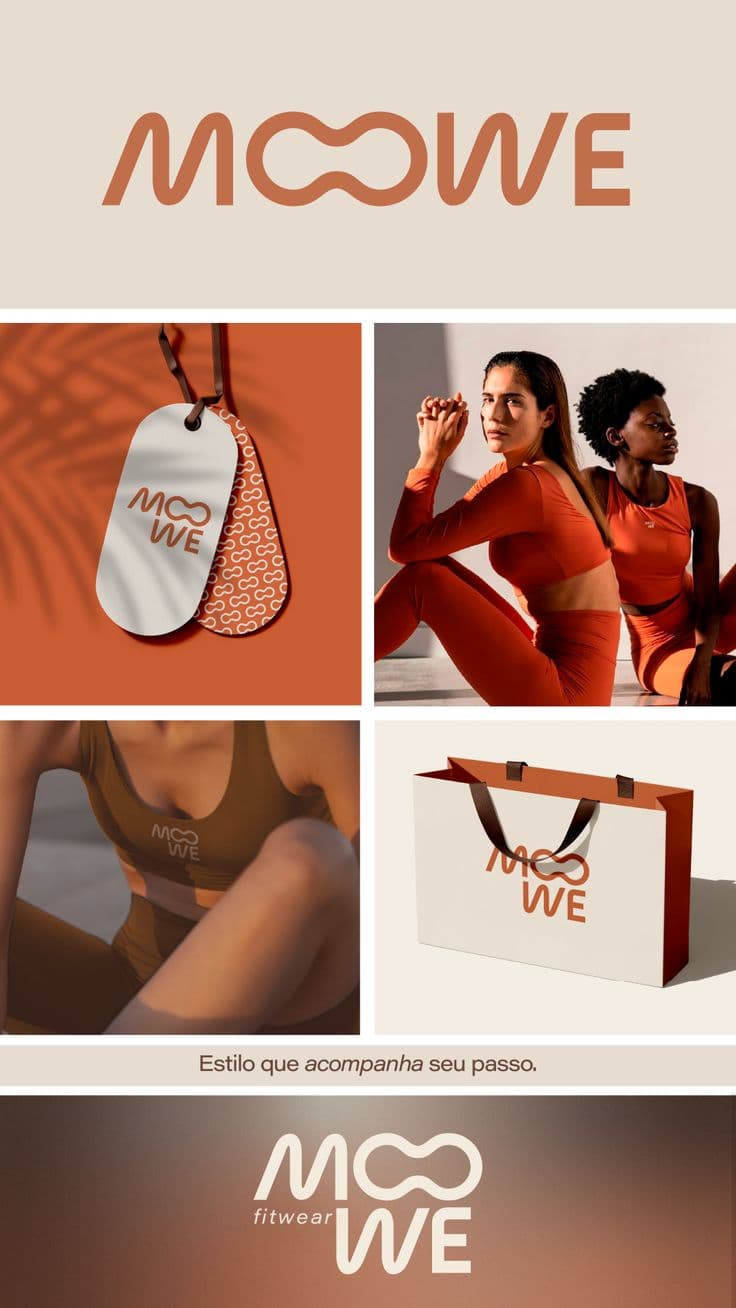
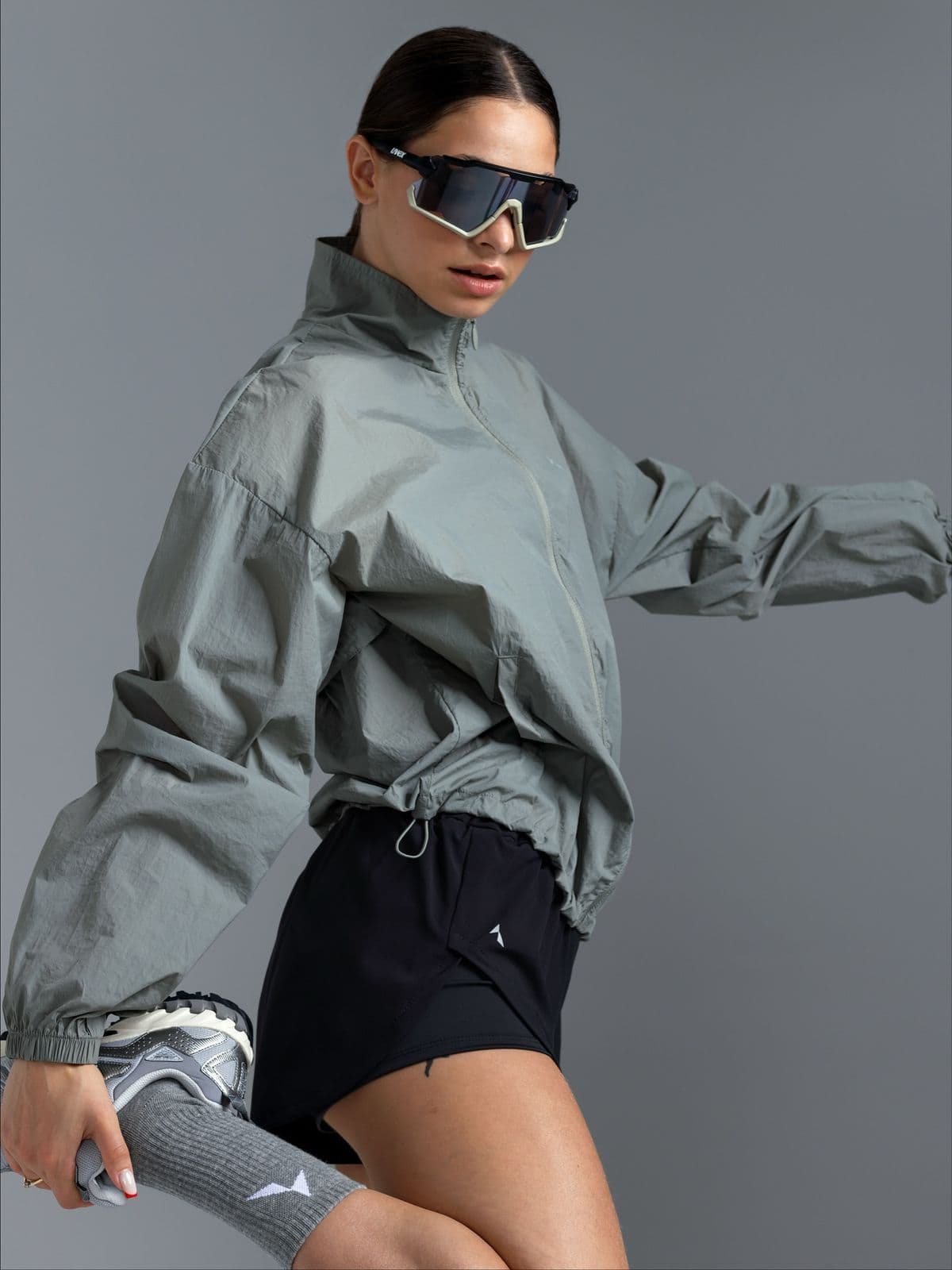
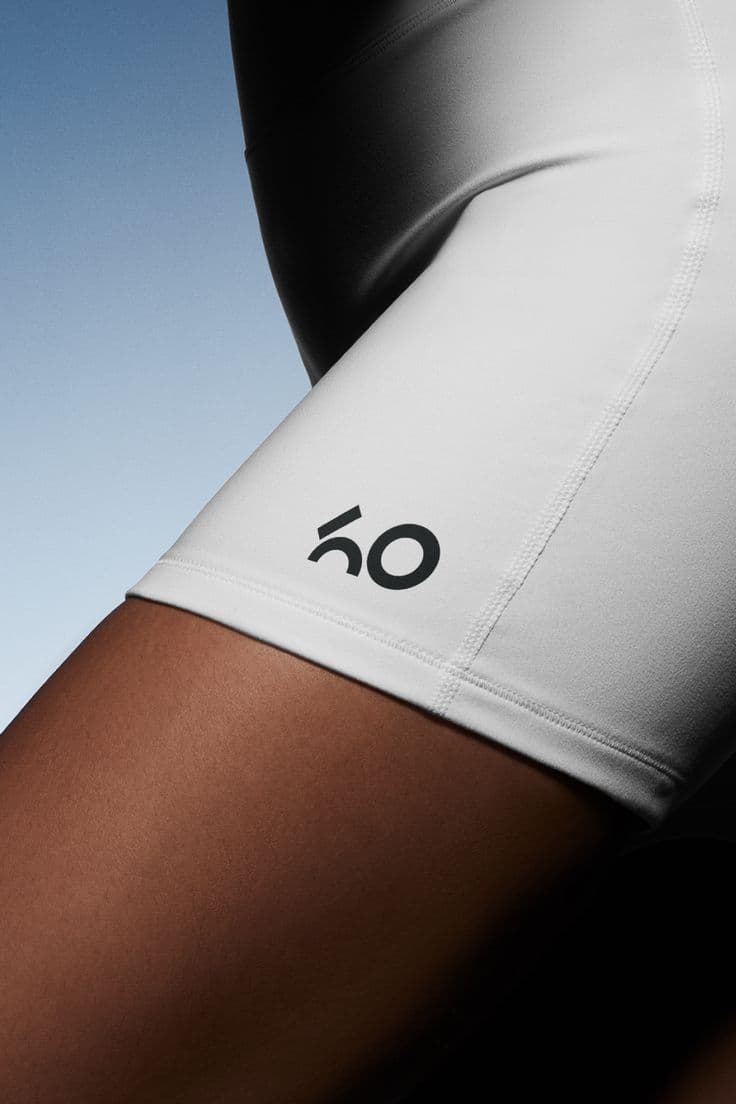
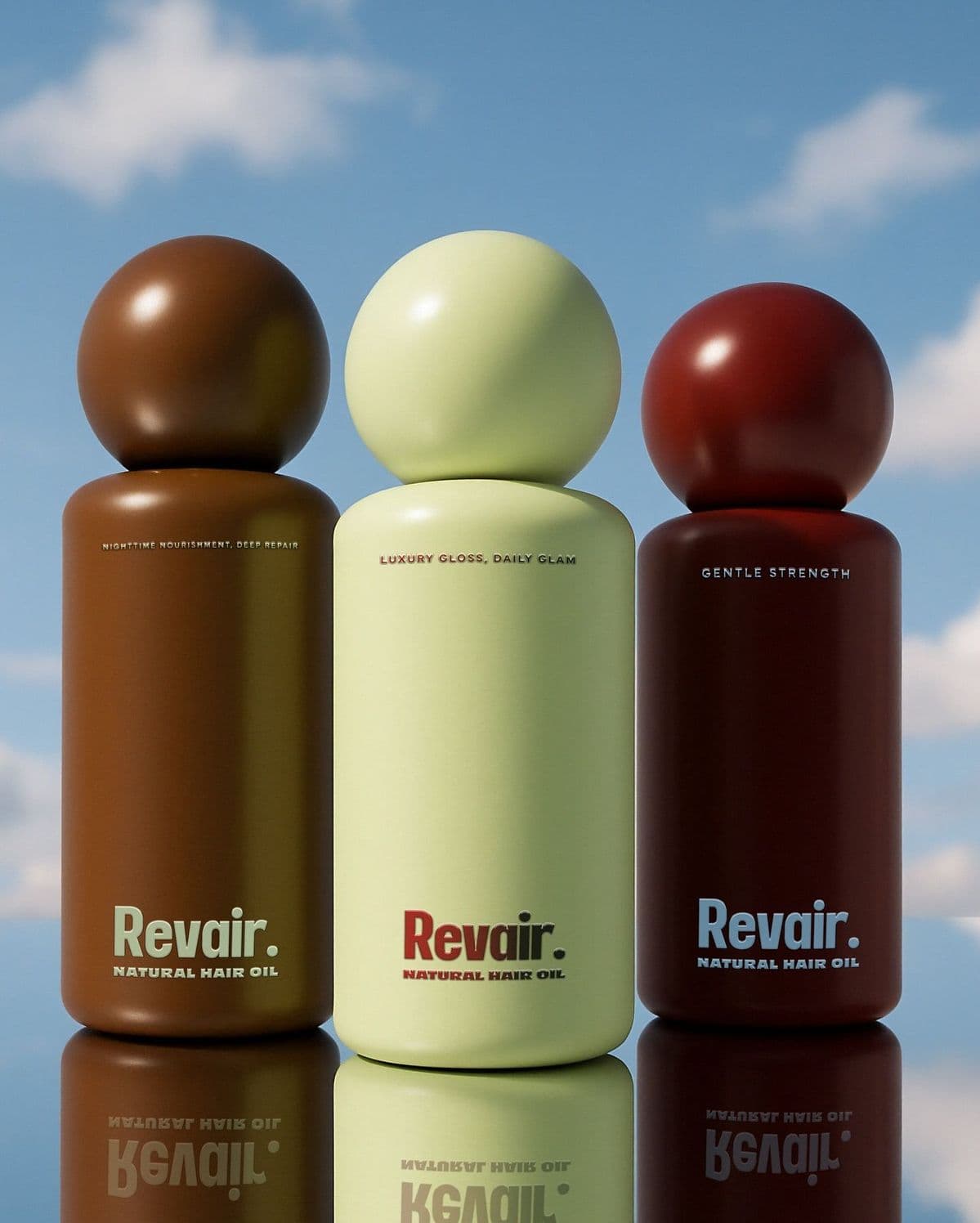
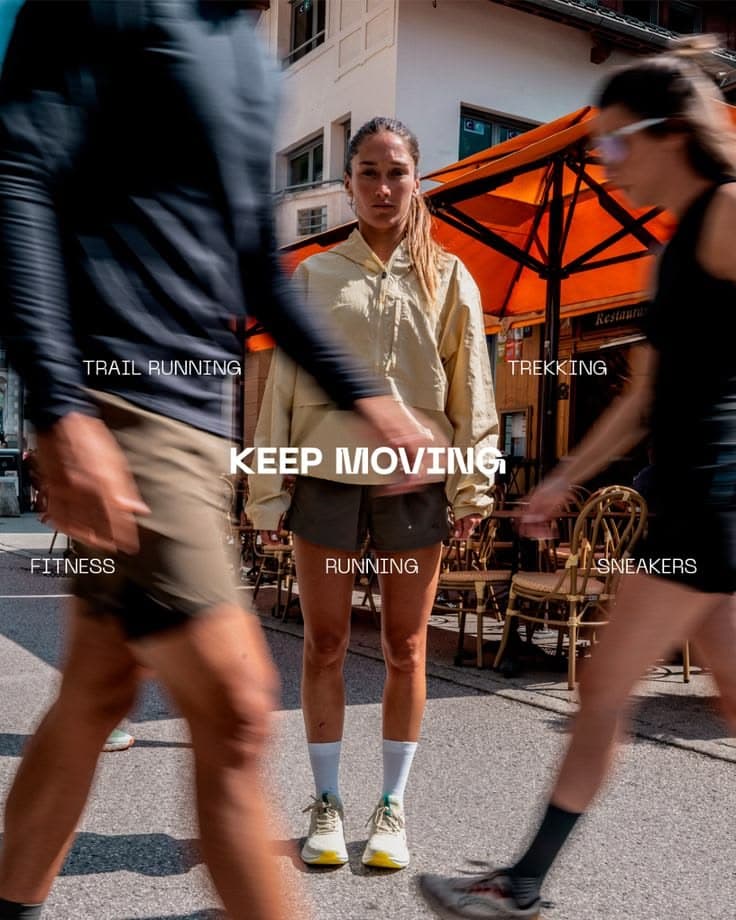

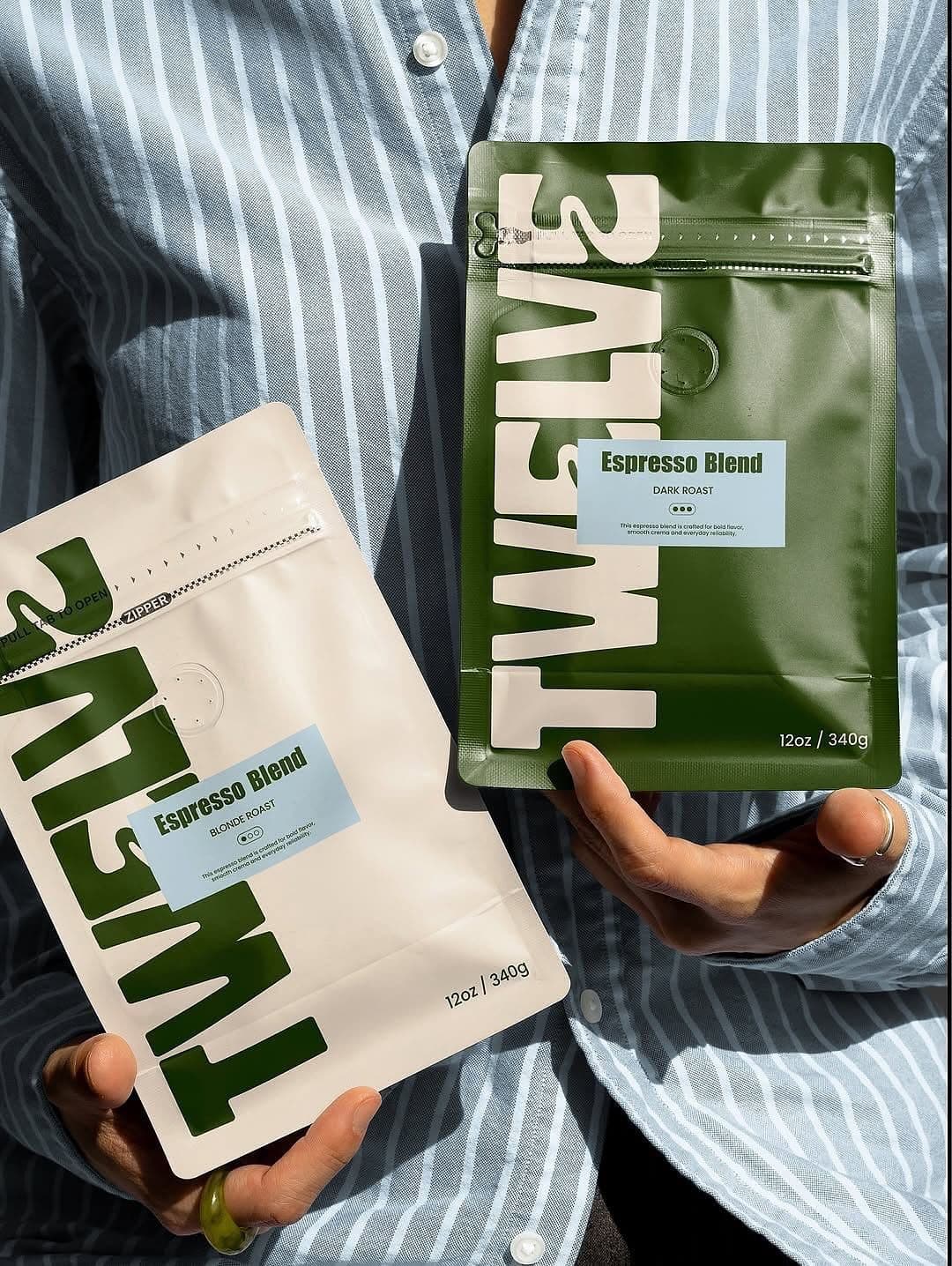
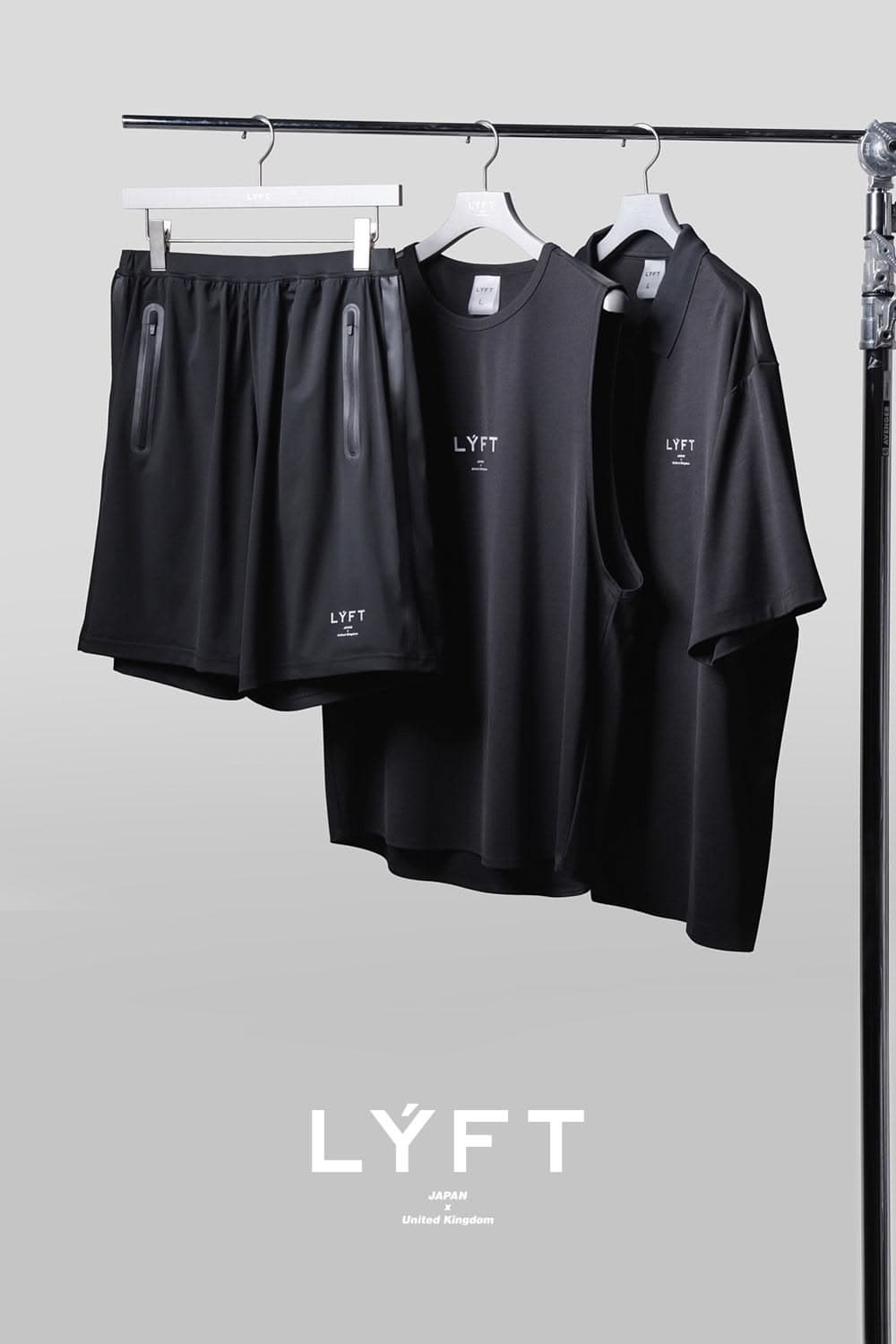
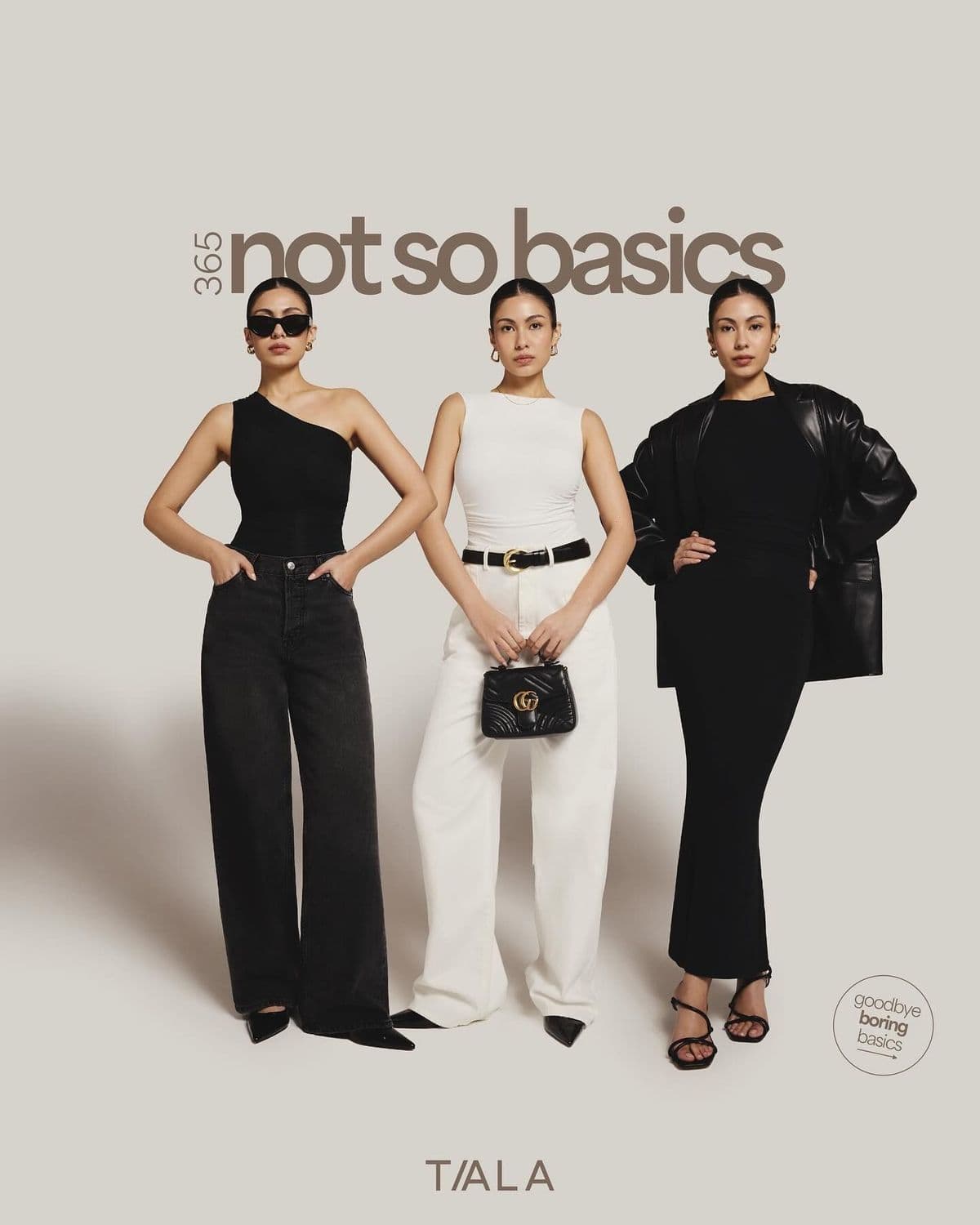
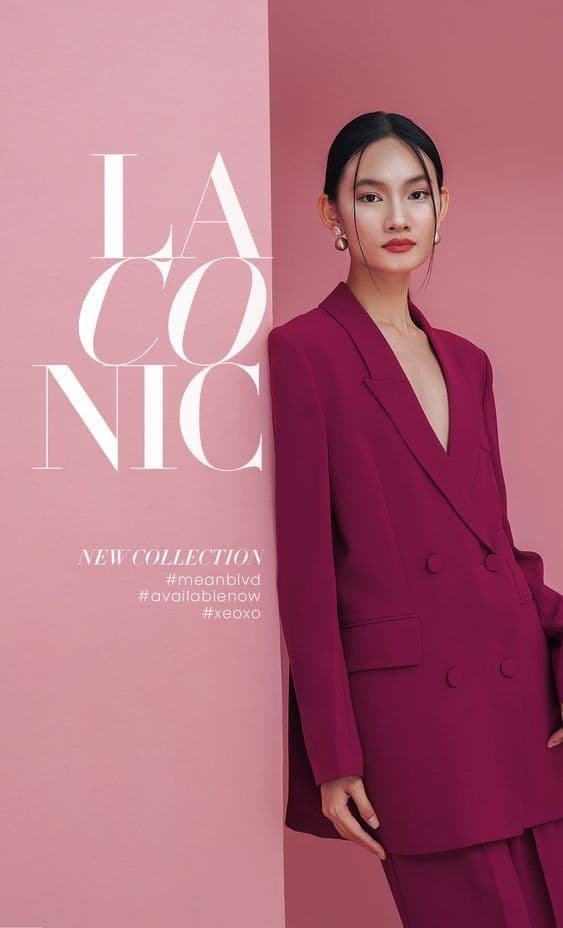
From upload to Squarespace in minutes
- 11. Extract your Squarespace brand DNAPaste your Squarespace site URL. Snapsible reads your Global Style colors, typography, and site language in under a minute.
- 22. Upload one clean product photoPlain background phone shots work. The AI preserves exact material, color, and detail when building new scenes.
- 33. Pick a modeProduct Photography for Commerce PDPs, Replicate Reference for lifestyle banners, or Fashion Shoot for apparel on AI models.
- 44. Export at Squarespace sizesRender at 2500x2500 for Commerce, 2000x1500 for Fluid Engine, and 1500x1500 for galleries — or select the All Squarespace Sizes batch.
- 55. Upload via image block or Commerce editorDrop JPEGs into an image block, gallery block, or product editor. Squarespace auto-generates responsive variants and serves the right size per device.
Three steps to
studio-quality content
No design skills. No studio. Just your product, your brand, and a reference image.
Set up your Brand DNA
Paste your website URL and we auto-extract your colors, fonts, tone, and style in seconds. Or define it manually.
Pick your references
Upload inspiration images or import directly from Pinterest. AI analyzes the scene, lighting, and composition.
Generate & download
AI places your exact product into the reference scene. Download in any format, or create ad creatives in one click.
Squarespace-specific tips
What separates AI-looking output from editorial-grade Squarespace creative.
Always upload the 2500 master, never a smaller crop
Squarespace generates seven responsive image sizes from your source. Uploading a 1500x1500 image means the 2500 variant is upscaled and blurry on Retina displays. Always export from Snapsible at 2500x2500 or higher for Commerce mains.
Match your Global Style palette
Squarespace's Global Style pulls site-wide colors into buttons, headings, and section backgrounds. Extract your brand with Snapsible before generating so backgrounds, lighting gels, and prop colors reinforce the site palette instead of fighting it.
Use 4:3 for Fluid Engine hero banners
Fluid Engine's default hero block renders at roughly 4:3 on desktop and crops to 1:1 on mobile. Generate at 2000x1500 and the composition stays centered across both breakpoints — square crops end up with awkward whitespace on desktop.
Fill the About page with editorial portrait shots
Squarespace brands often have an About page with founder or process imagery. Use Snapsible's Fashion Shoot mode to generate editorial portrait-style images (even if the subject is a product) that give the page a magazine-quality hero.
Batch-regenerate old Commerce photos for a refresh
If your Squarespace Commerce catalog has 50+ legacy product photos shot years ago, don't reshoot. Upload each original to Snapsible, generate a fresh scene with your current brand DNA, and bulk-swap in the Commerce editor. It's a full rebrand in an afternoon.
Start free. Scale when ready.
Every plan runs on credits — 5 credits per image. No hidden fees, no confusing tiers.
Try it out, no card needed.
- 50 credits / month
- 10 image generations
- 1 brand profile
- All 6 workflows
For solo creators and founders.
- 500 credits / month
- 100 image generations
- 5 brand profiles
- All 6 workflows
- No watermark
- Commercial license
For growing brands and agencies.
- 1,500 credits / month
- 300 image generations
- Unlimited brand profiles
- All 6 workflows
- No watermark
- Commercial license
- Priority queue
- API access
5 credits per image · All workflows same cost · Credits reset monthly, no rollover
AI product photos for Squarespace: FAQ
Your References +
Your Brand DNA
= Studio-Quality Content
No designers. No studios. No wasted hours. Just upload, generate, and publish.
Free plan available · No credit card required · Cancel anytime