AI product photographyfor WooCommerce
Main PDP images, catalog tiles, gallery thumbnails, and hero banners — sized for Storefront, Astra, Flatsome, and every major WooCommerce theme. Bulk export ready.
WooCommerce image sizing is messy. Snapsible exports it clean.
WooCommerce generates three image sizes automatically: single product (default 600x600), catalog (300x300), and thumbnail (100x100). But most modern themes override these — Flatsome wants 800x800, Astra prefers 600x600, Storefront runs 416x416 for tiles. Merchants end up with blurry product pages because their uploads are too small, or bloated load times because they're too large. On top of that, hero banners, category headers, and the WooCommerce blocks editor each have their own dimensions. Snapsible solves this by generating at 2000x2000 master size and exporting crops for every WooCommerce size your theme uses. Upload your product once, pick Product Photography or Replicate Reference mode, and get main images, catalog thumbnails, gallery variants, and hero banners in a single batch. Your WordPress brand palette — extracted from your storefront URL — stays consistent across every crop. Drop the JPEGs into your media library, regenerate thumbnails with a plugin like Regenerate Thumbnails if needed, and your product catalog is live.
WooCommerce aspect ratios & image specs
Snapsible generates at the exact ratio each slot expects — no after-the-fact cropping.
AI-generated. Studio quality.
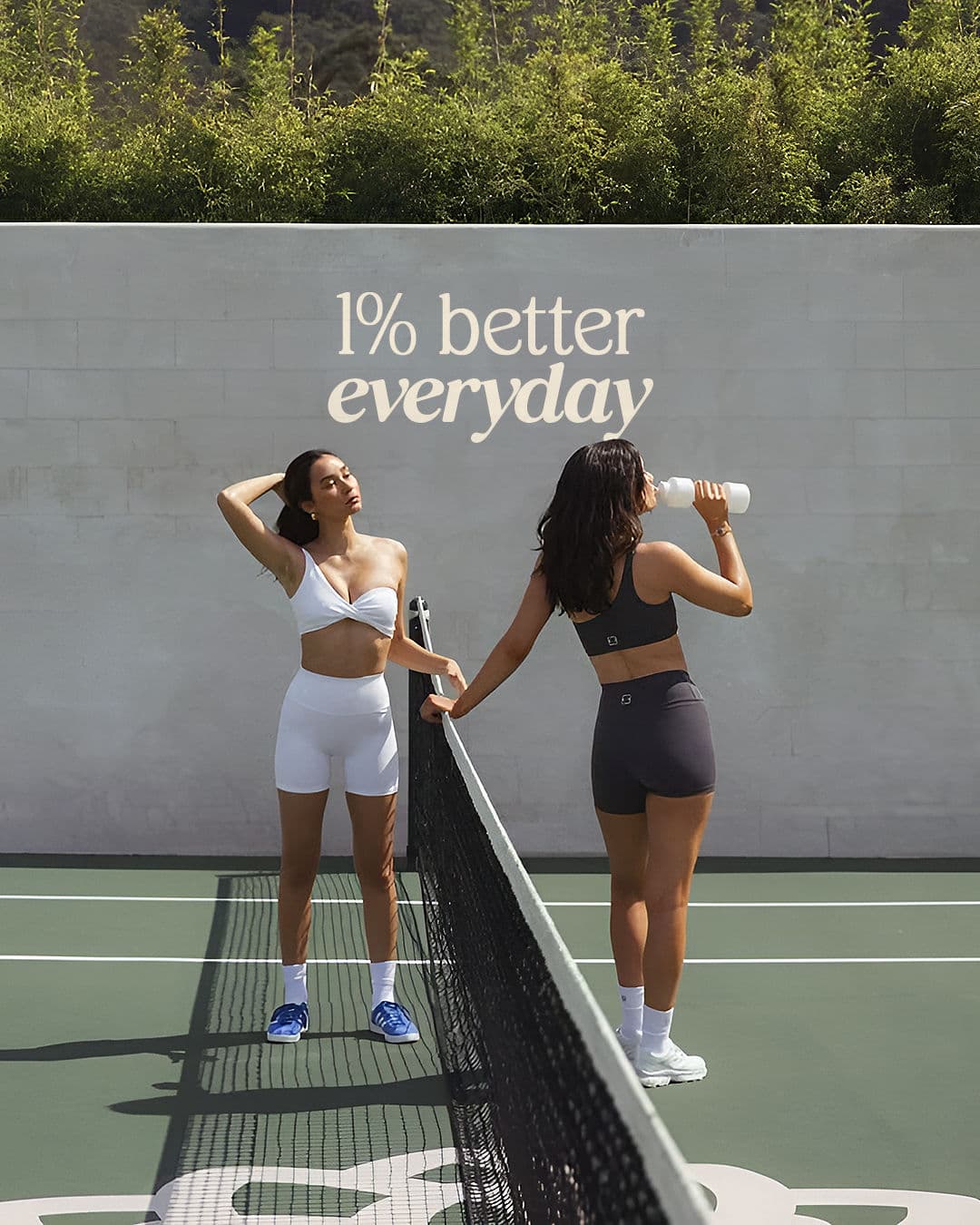
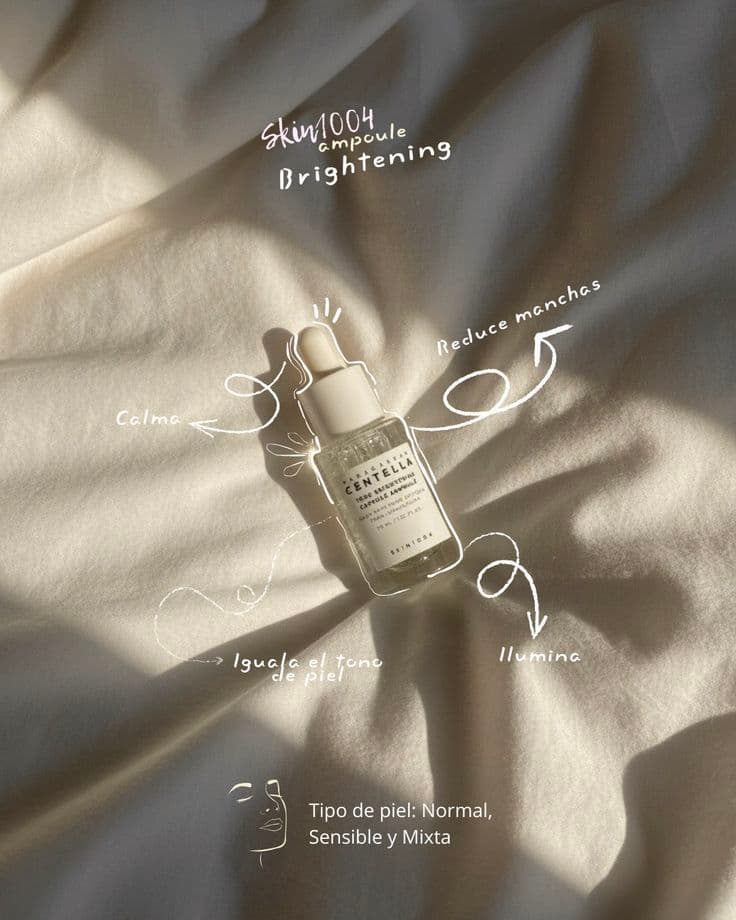
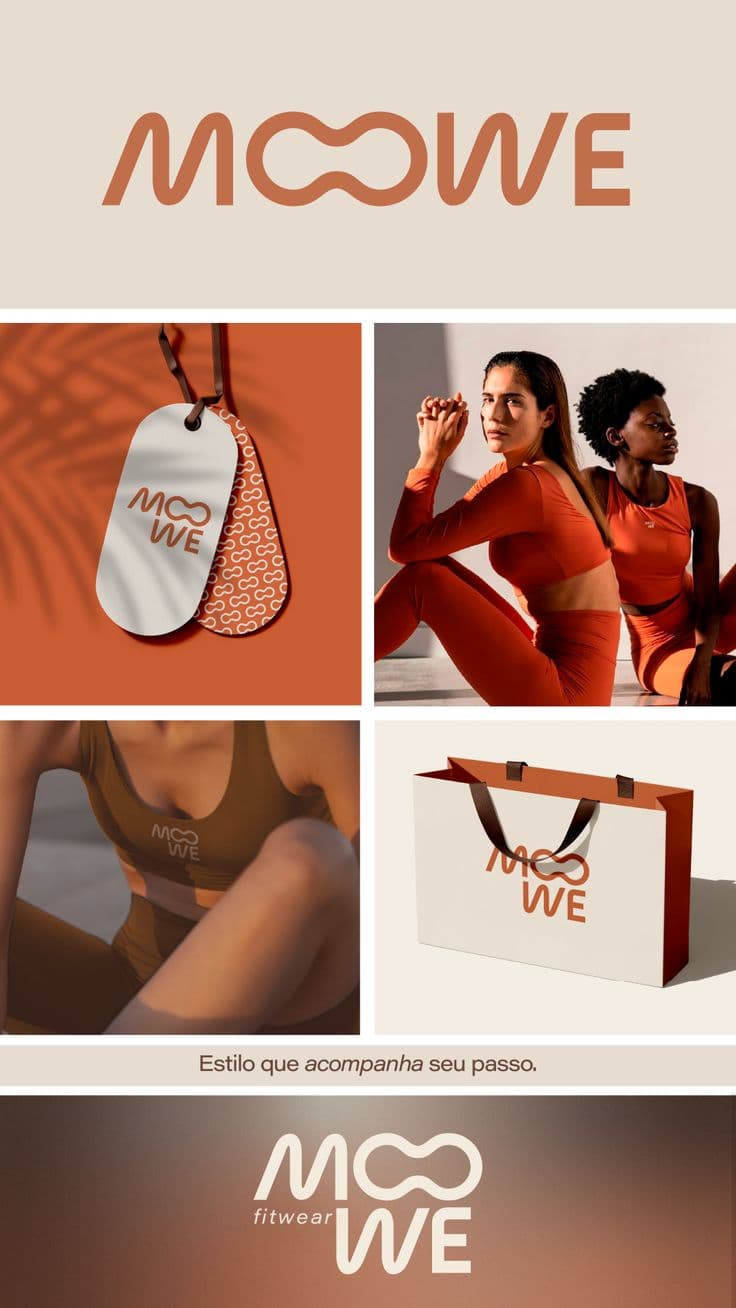
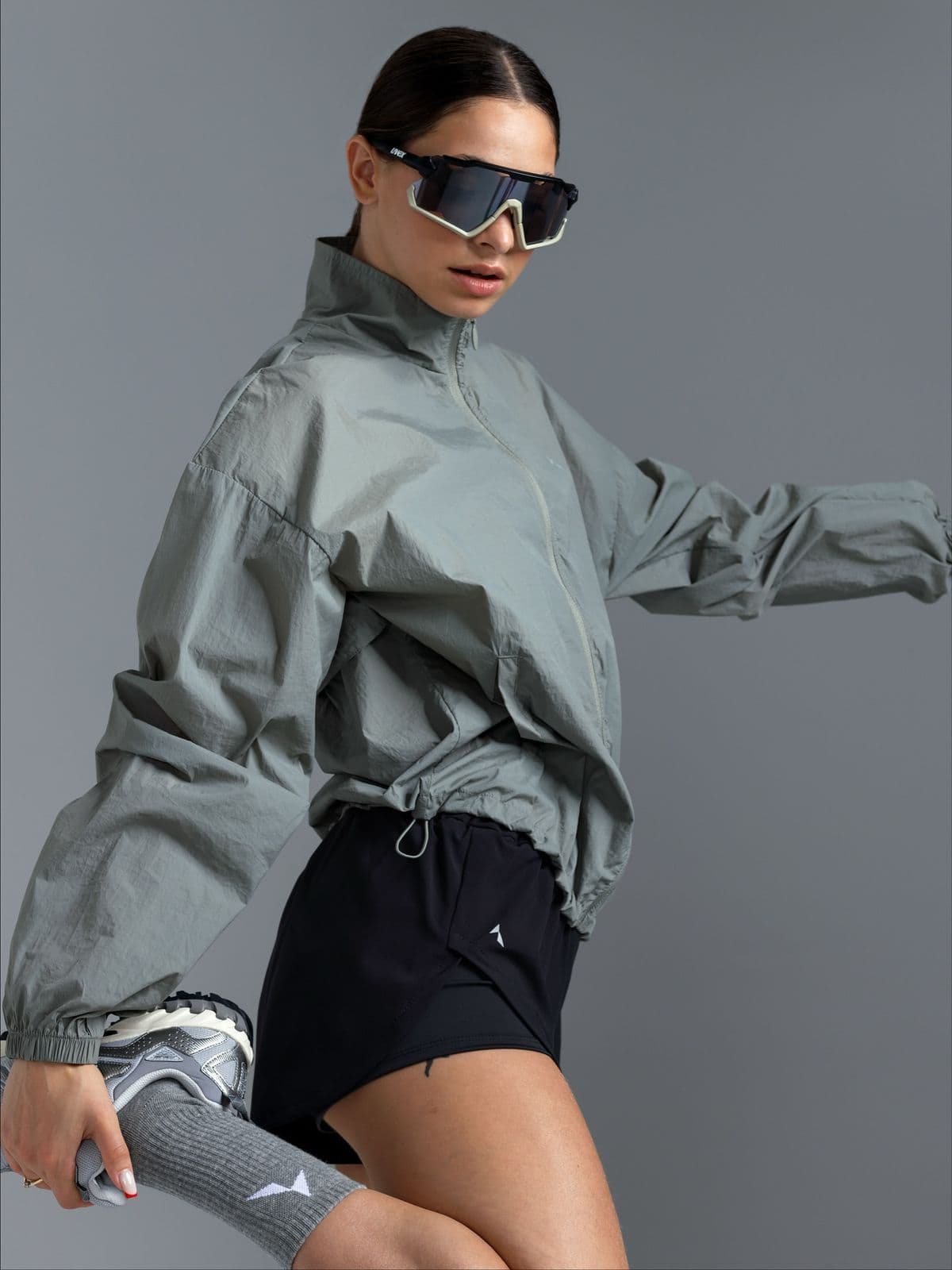
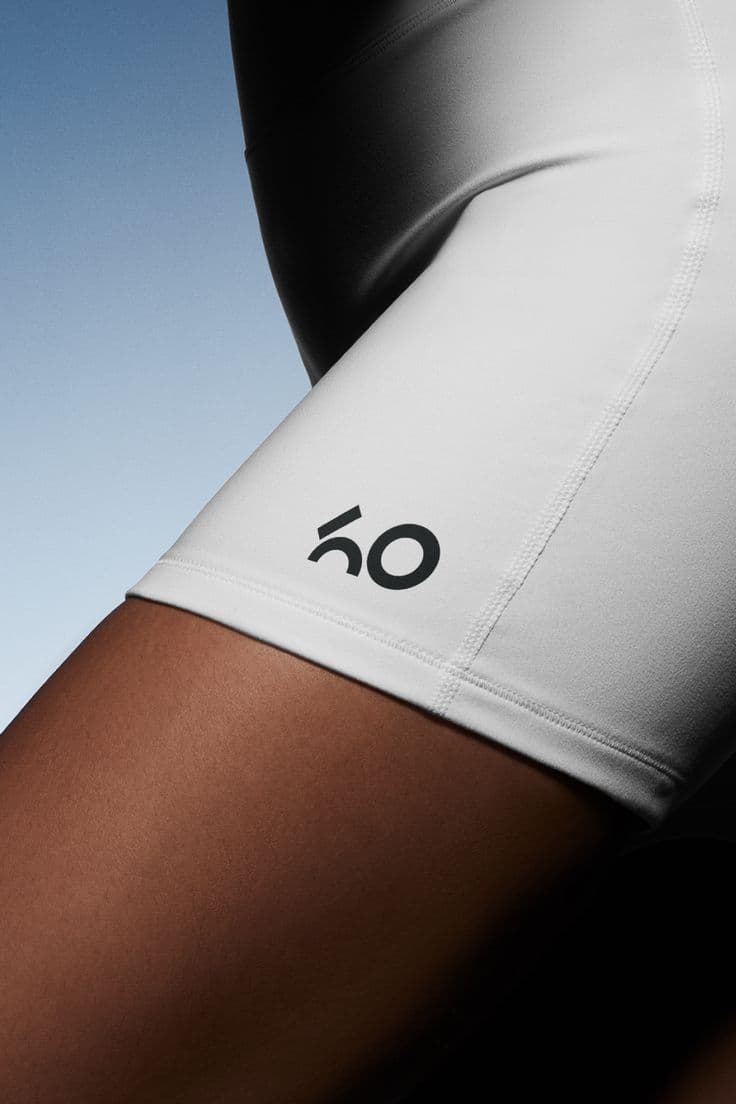
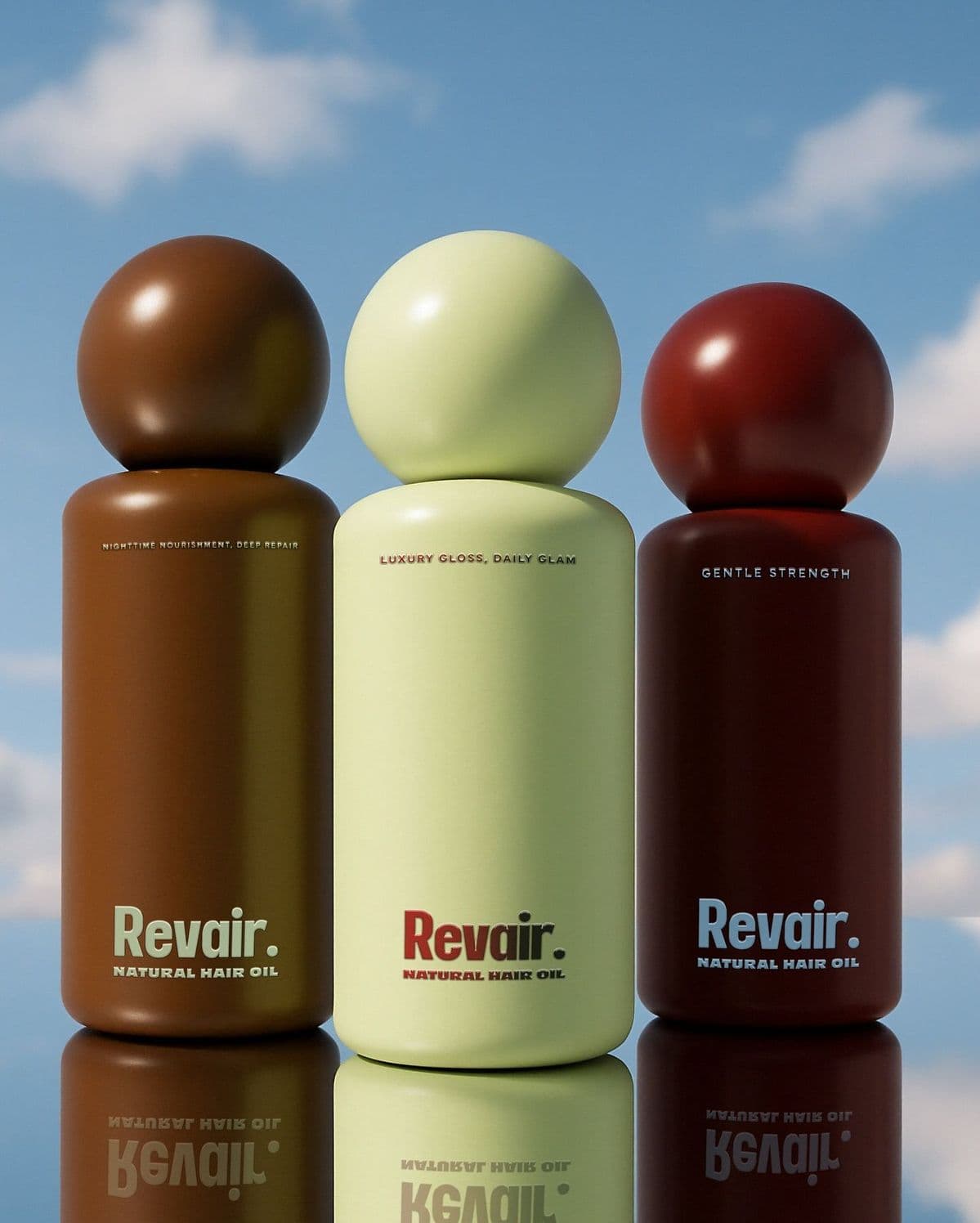
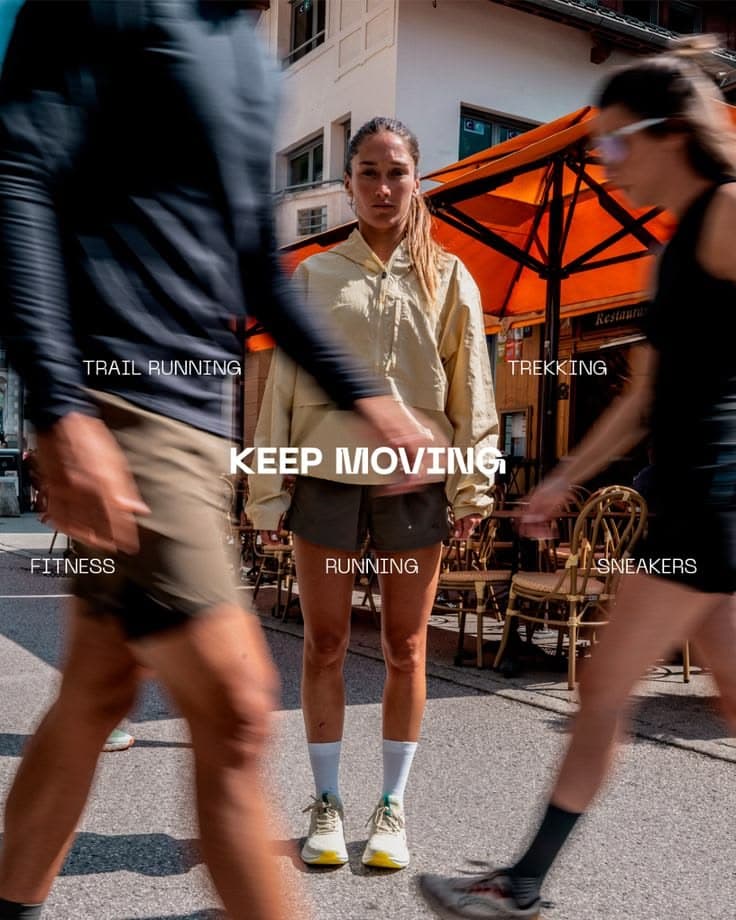
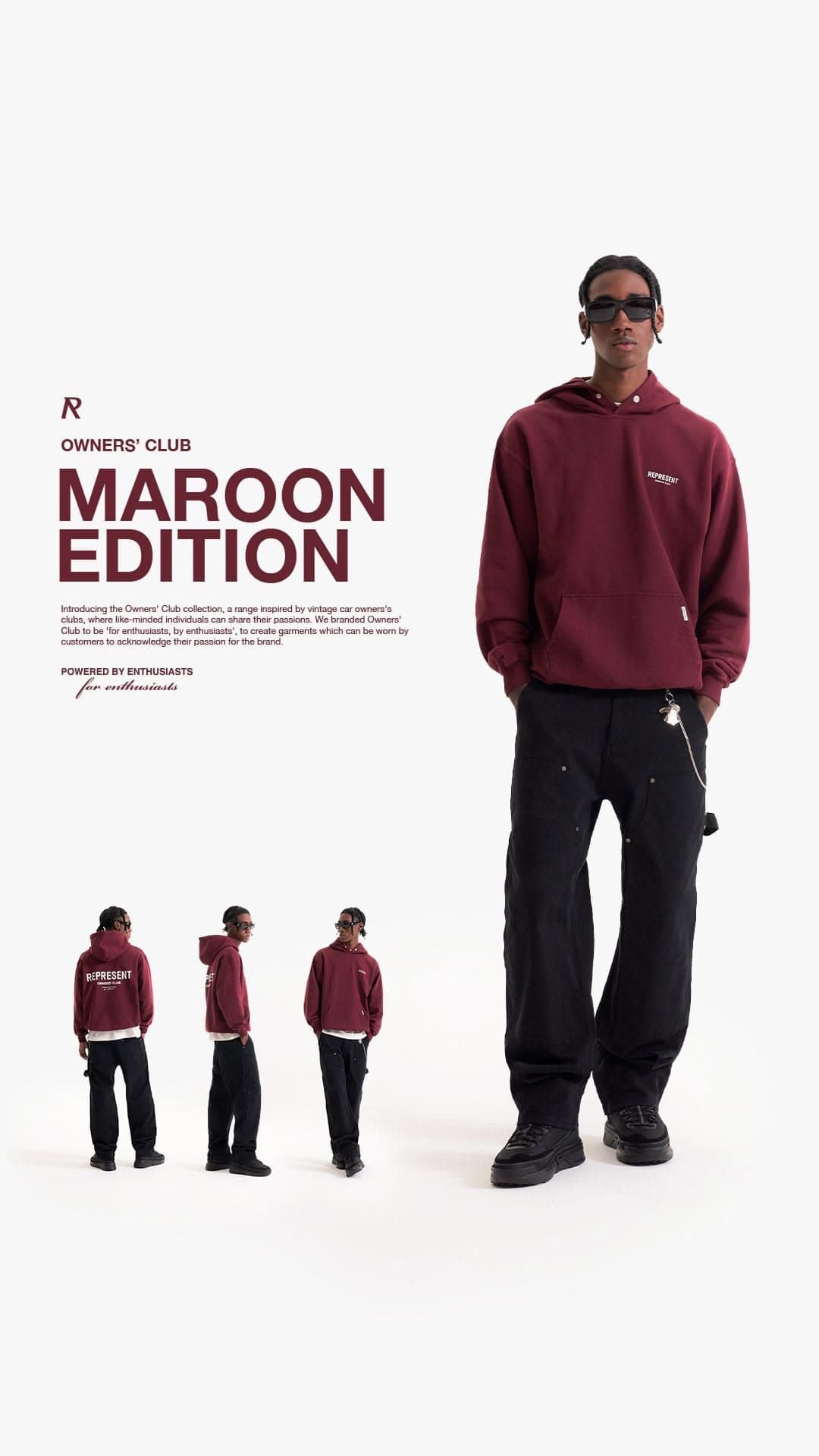
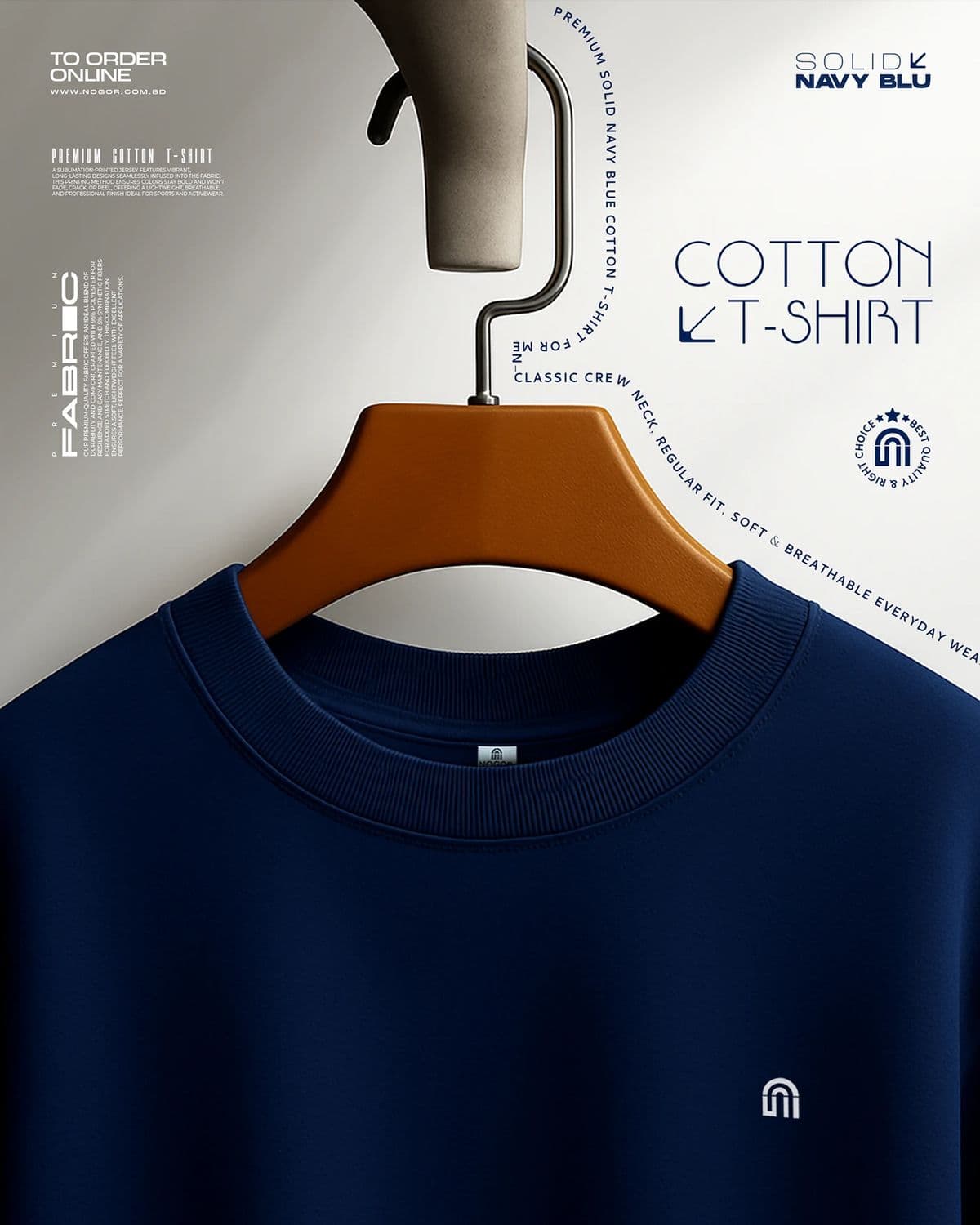
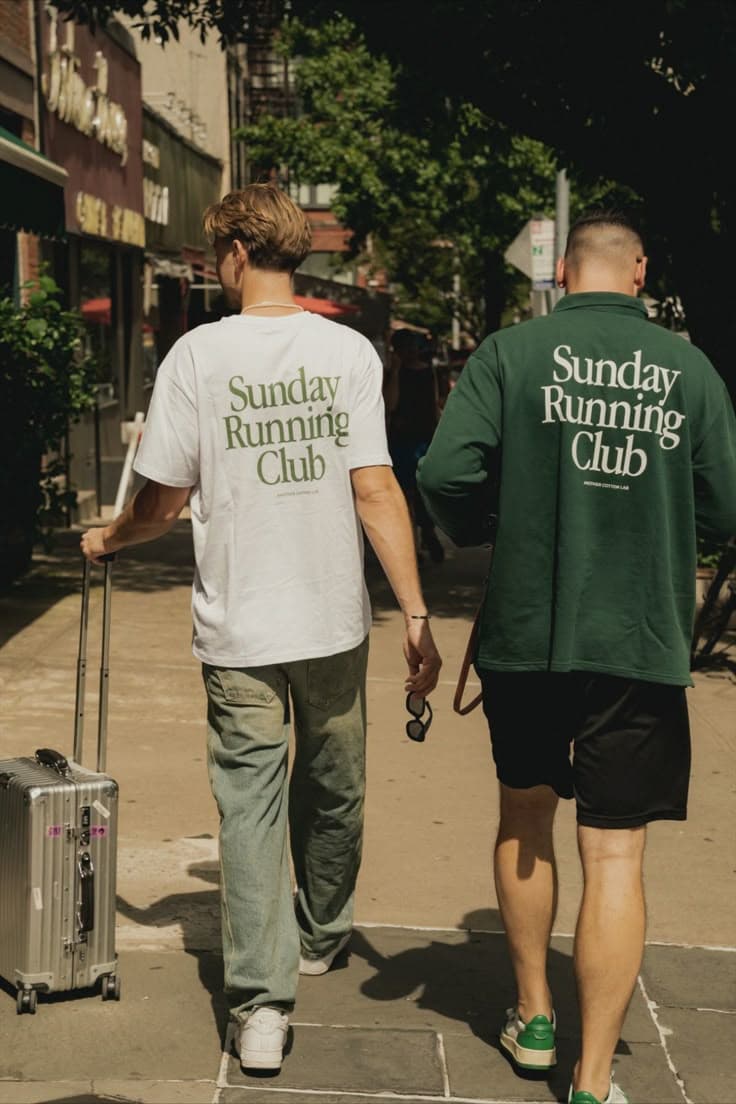
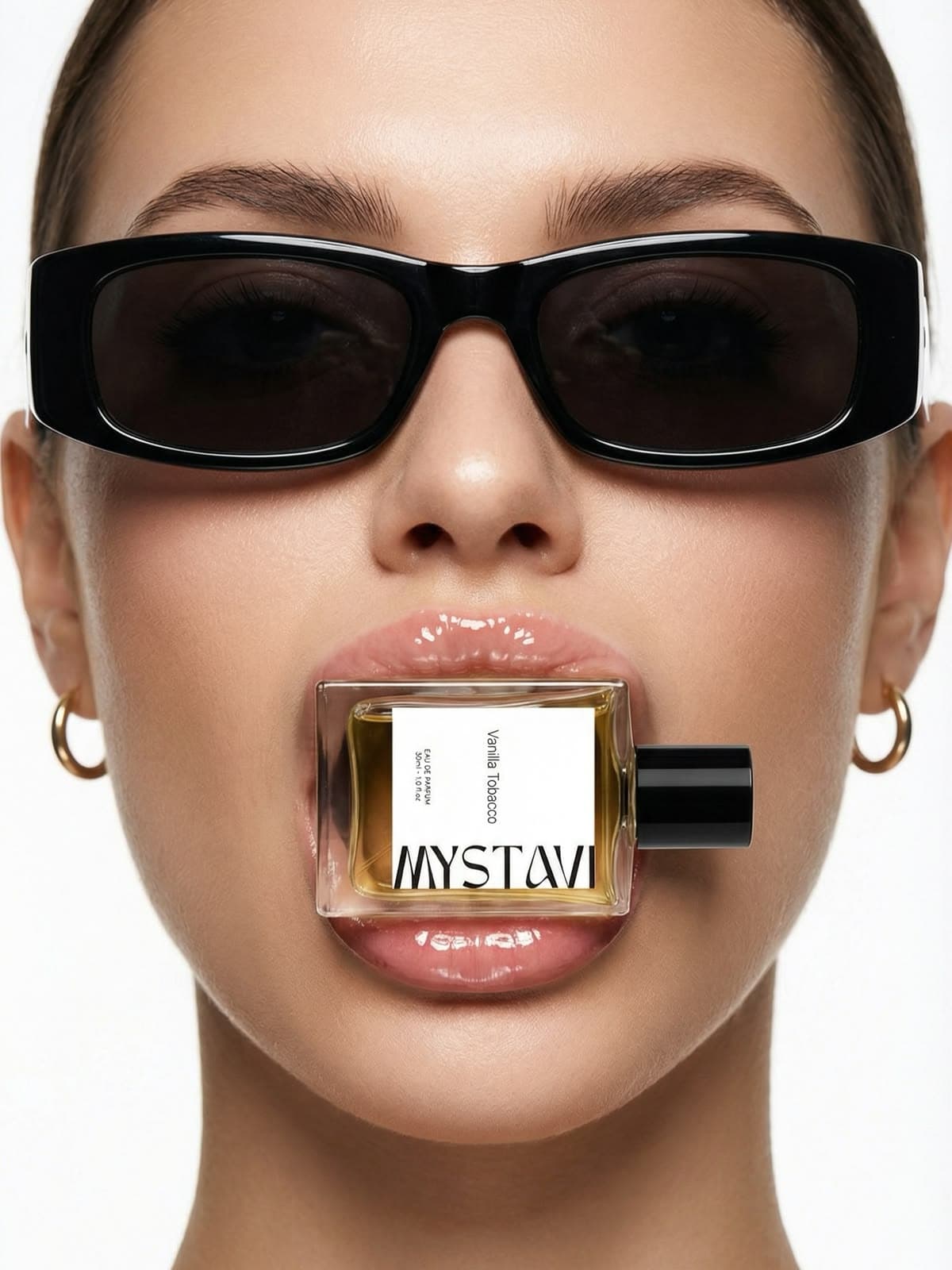
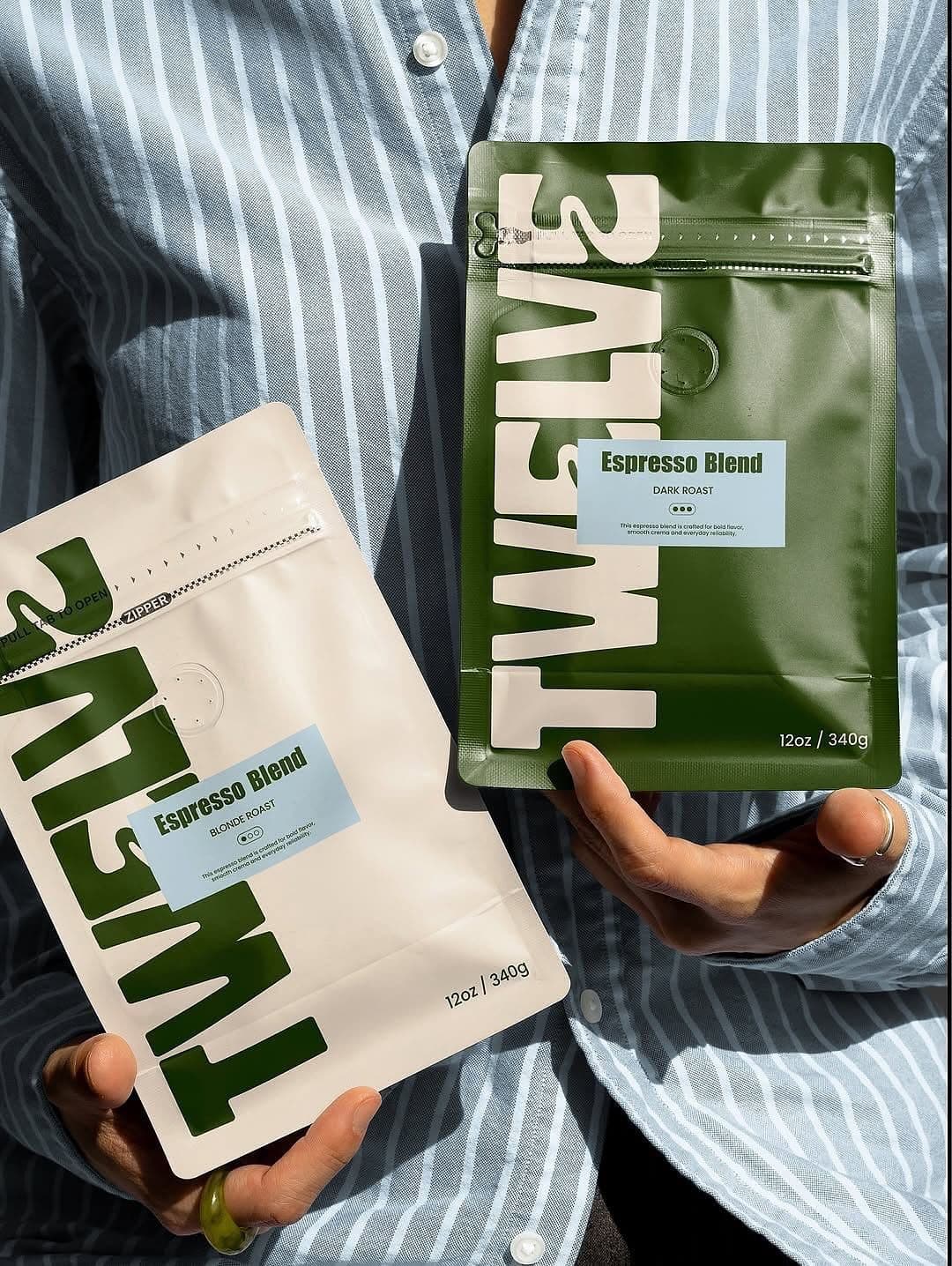
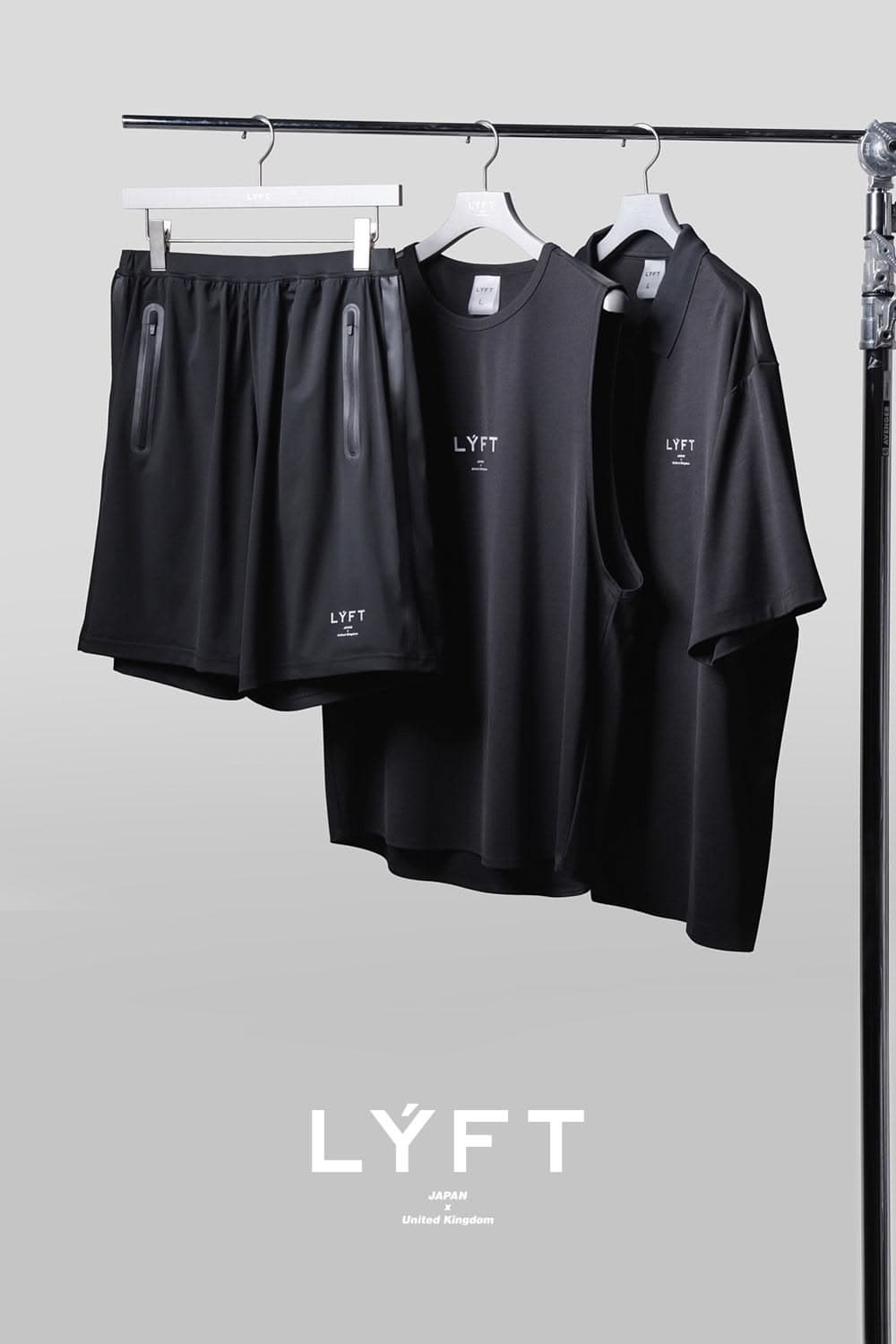
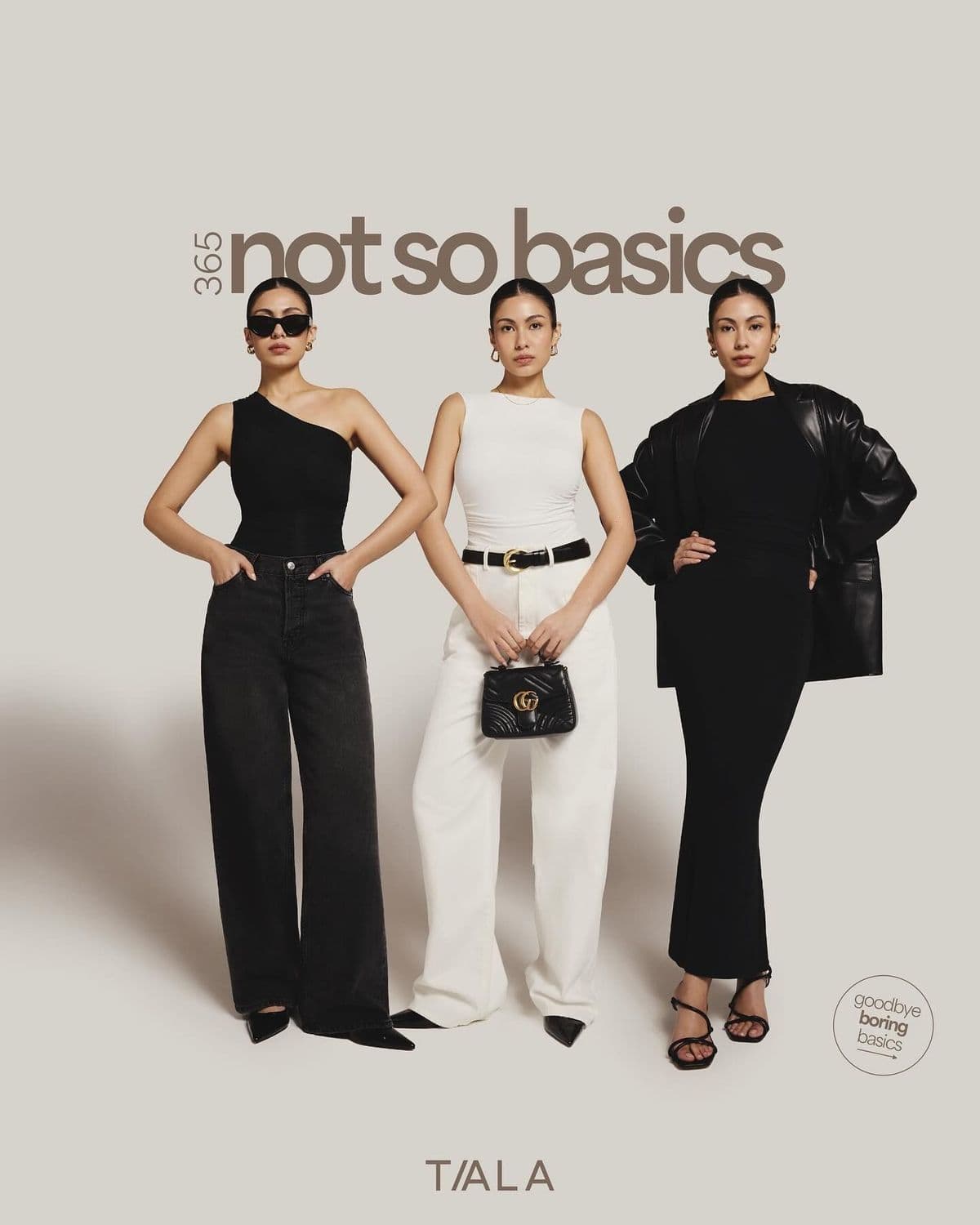
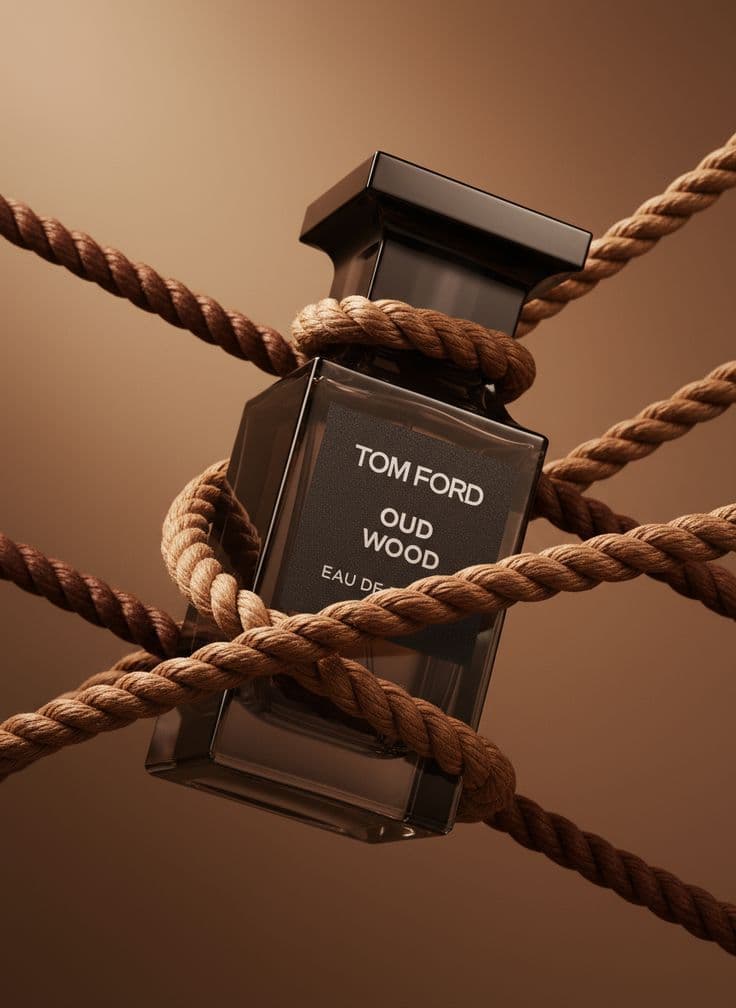
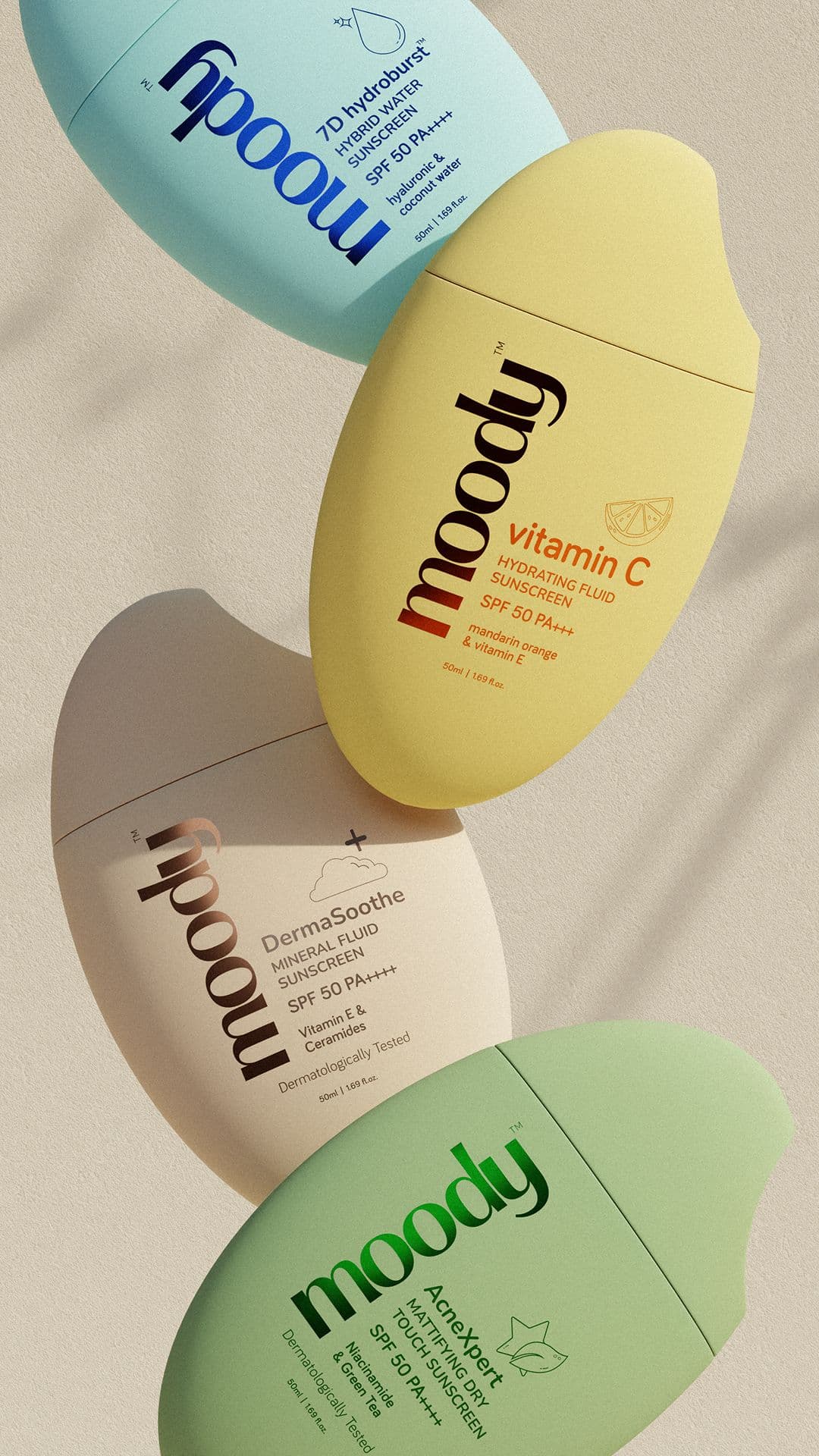
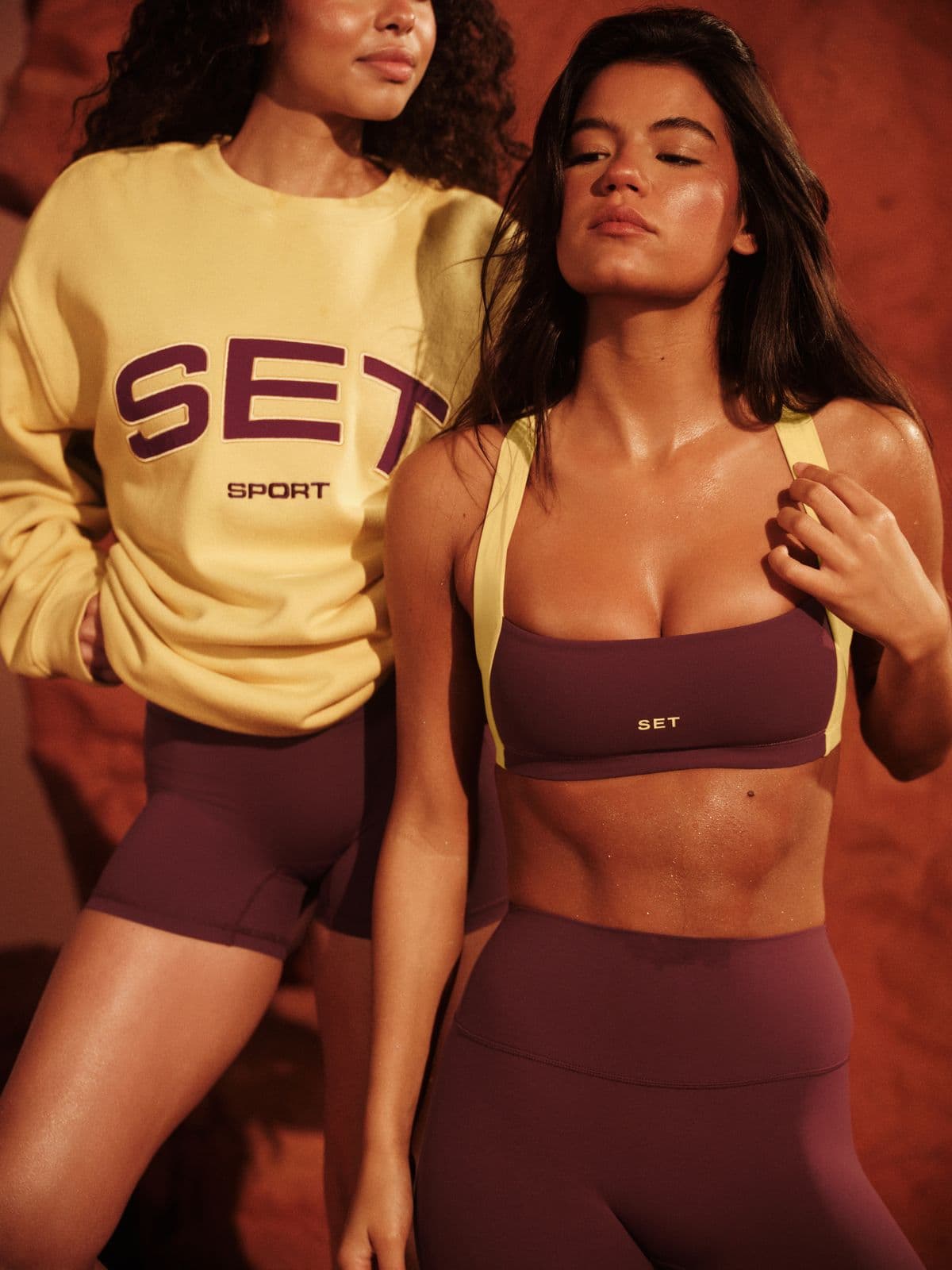
Every image below was generated in seconds. No photographer, no studio, no retouching.




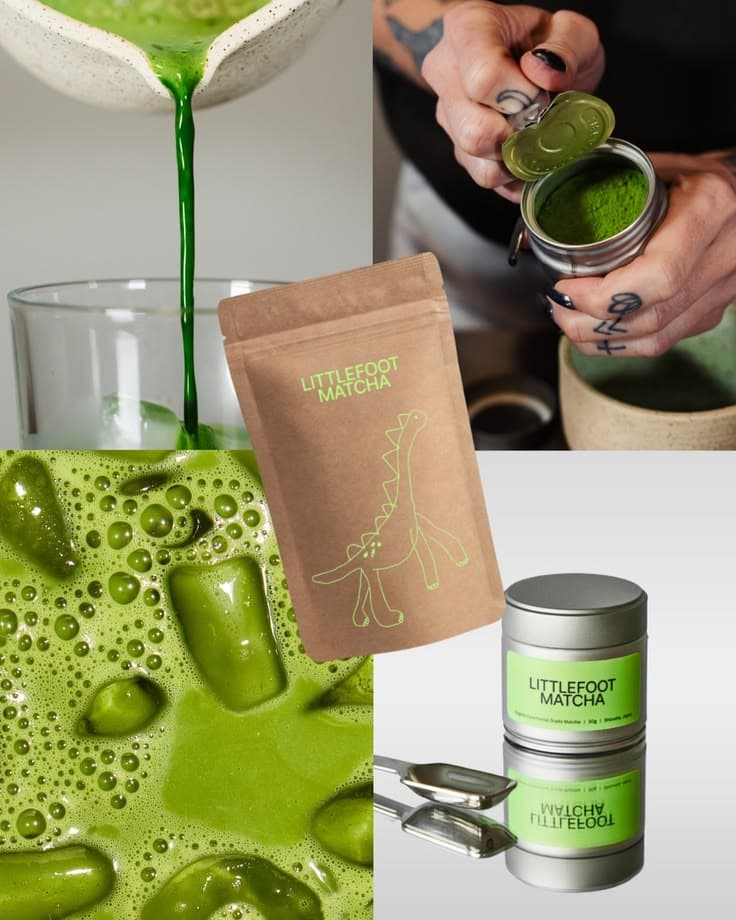
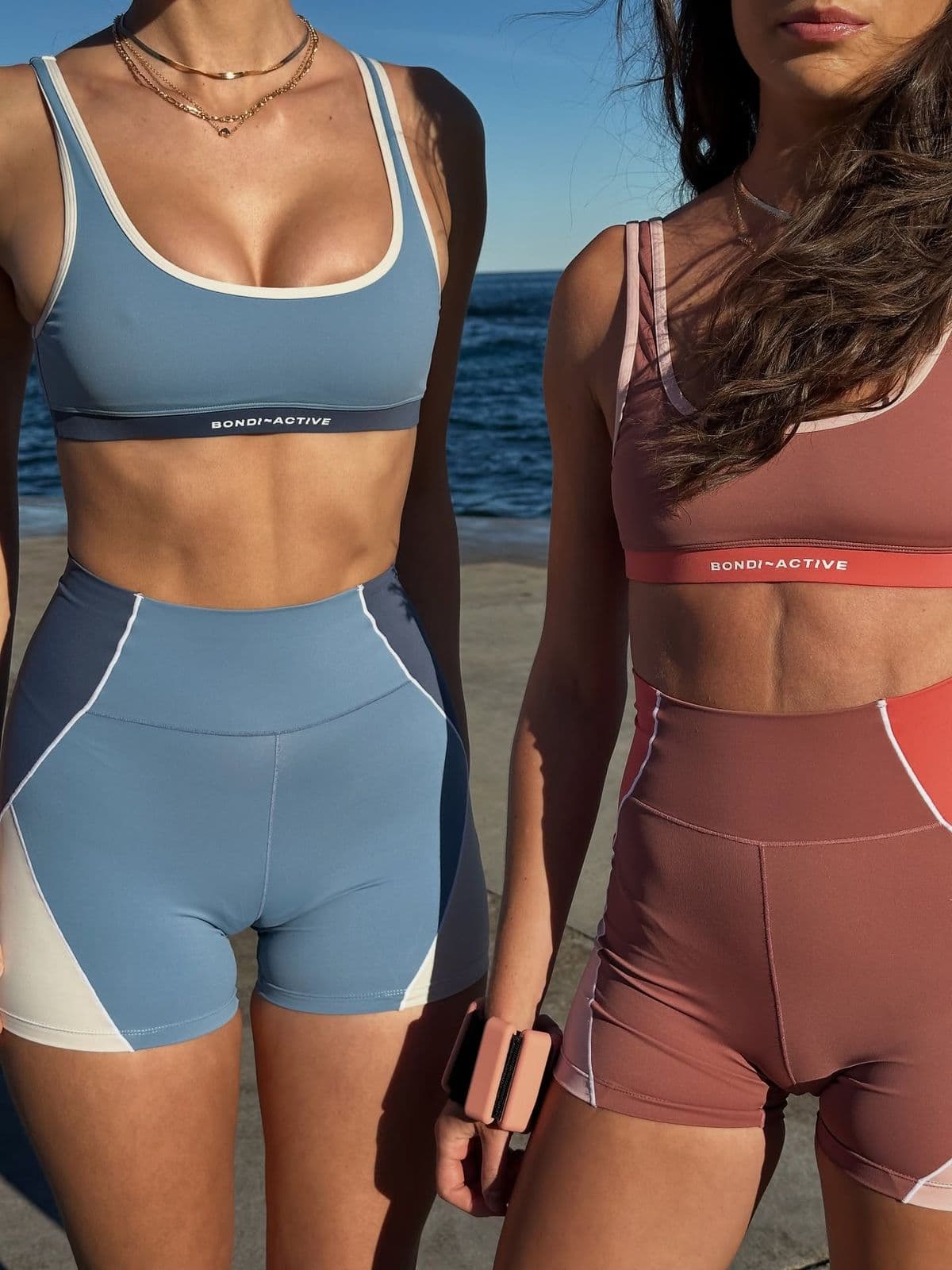
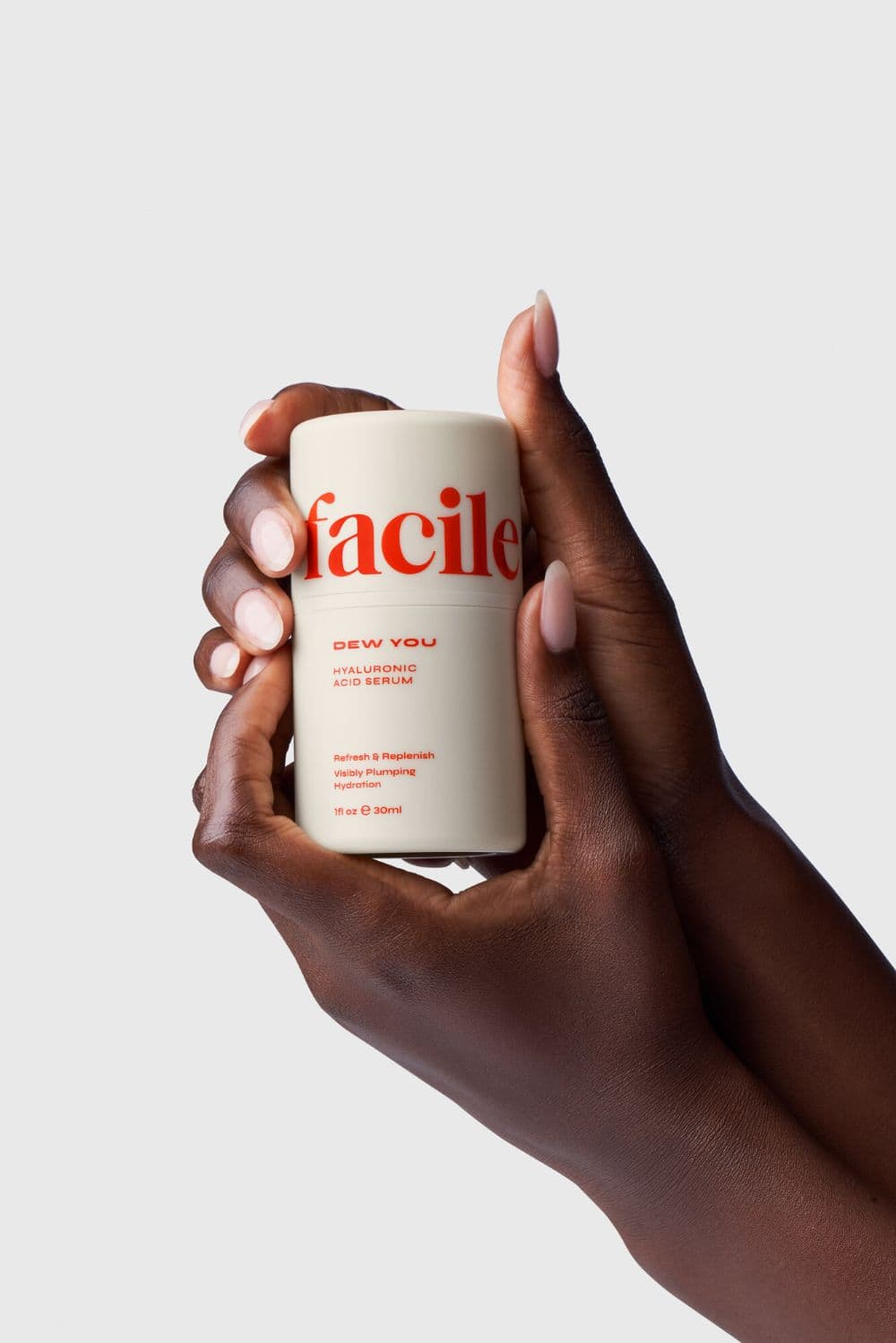
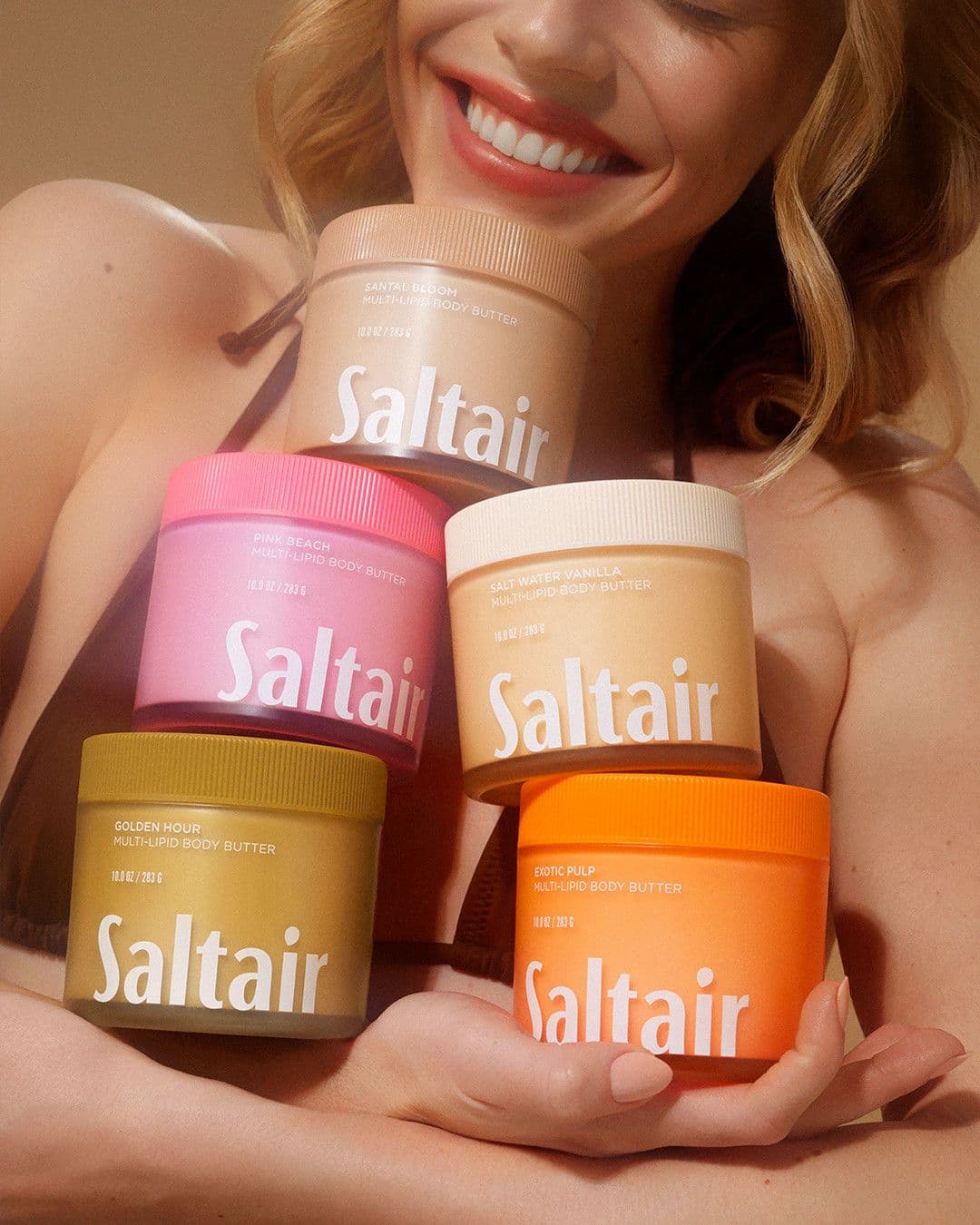
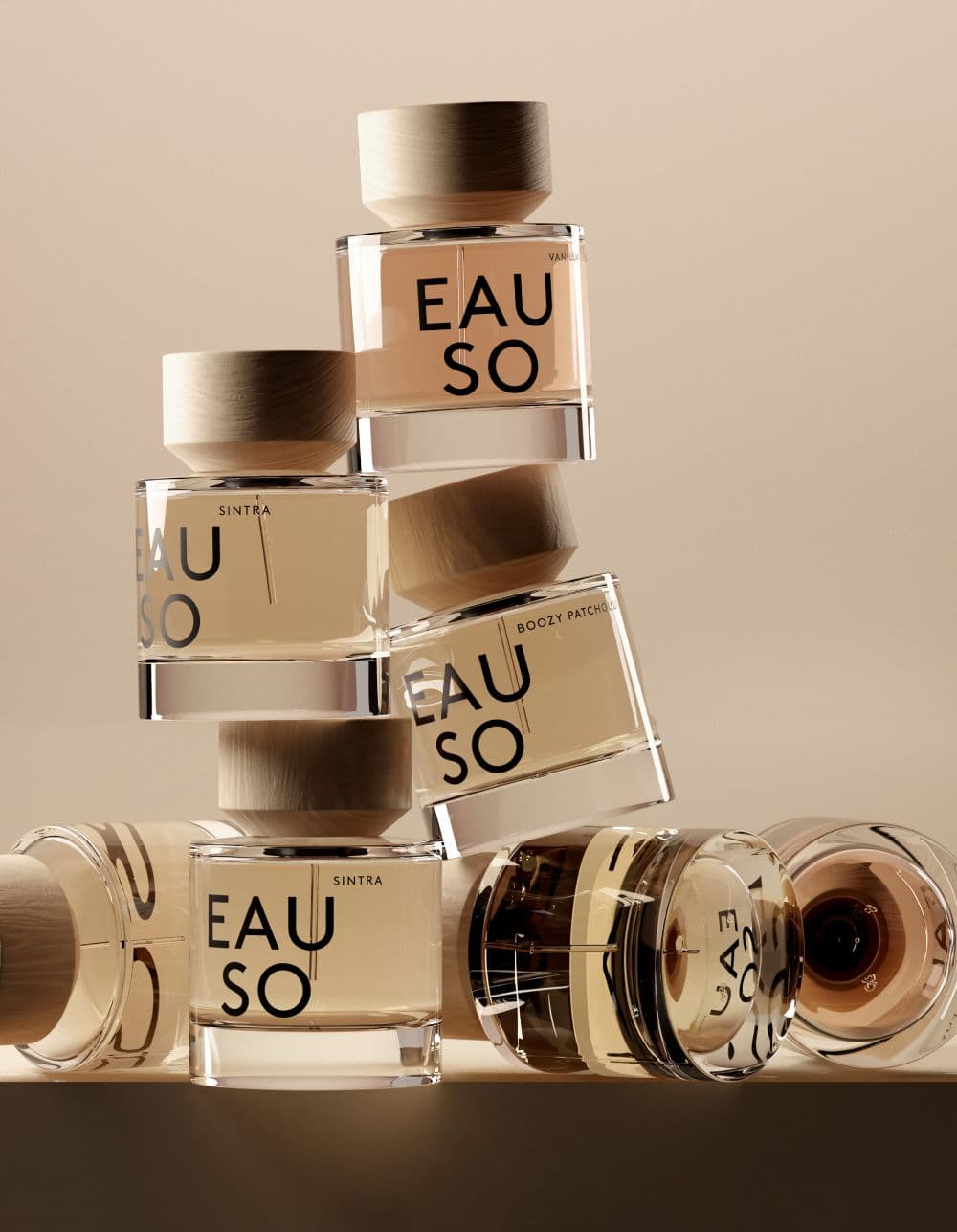
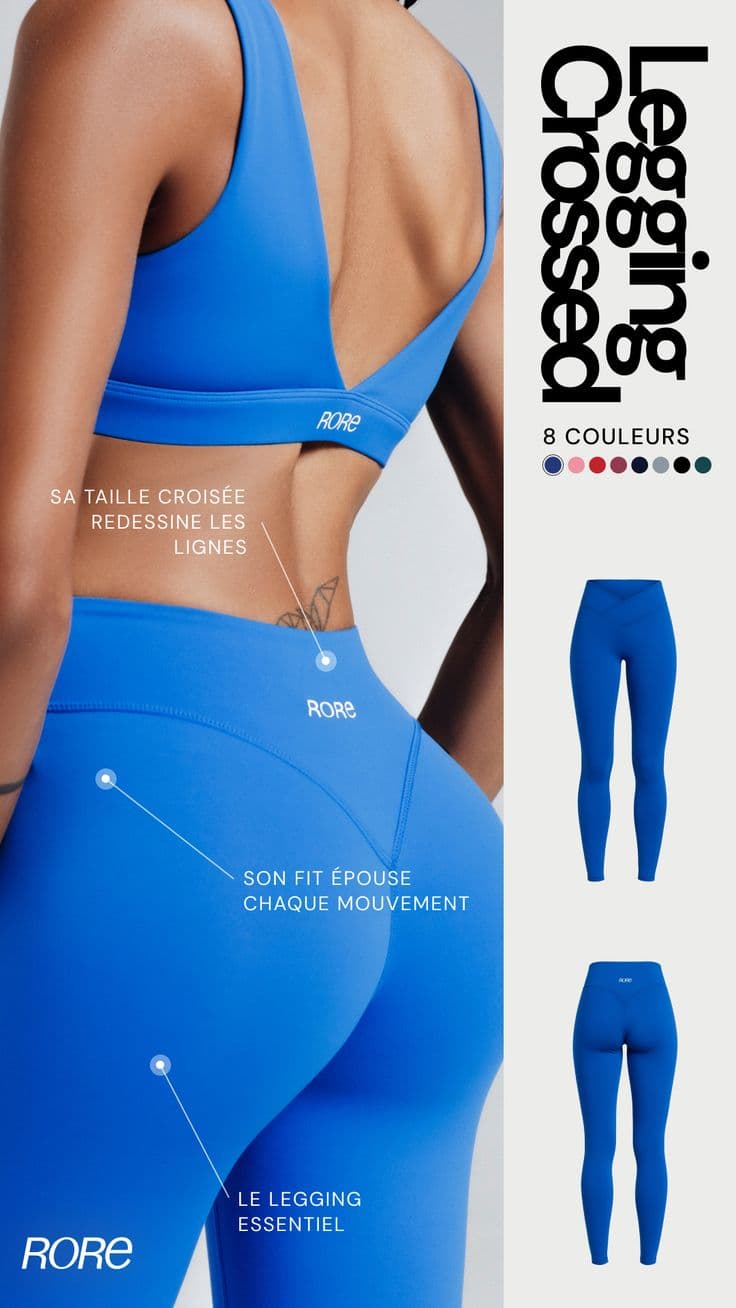
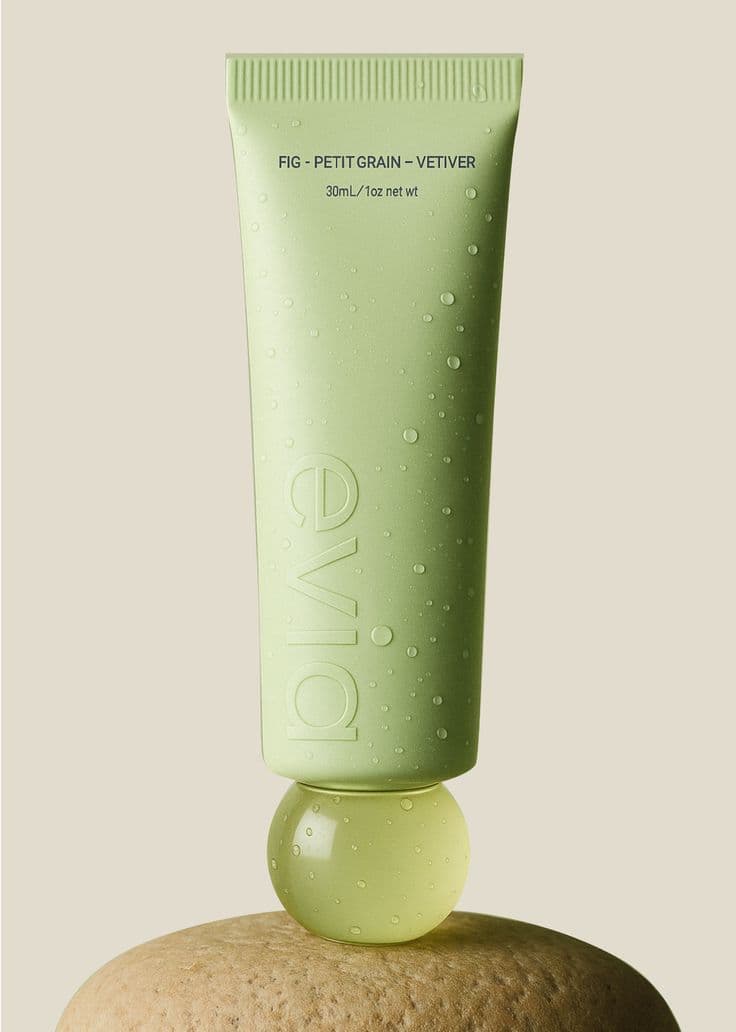
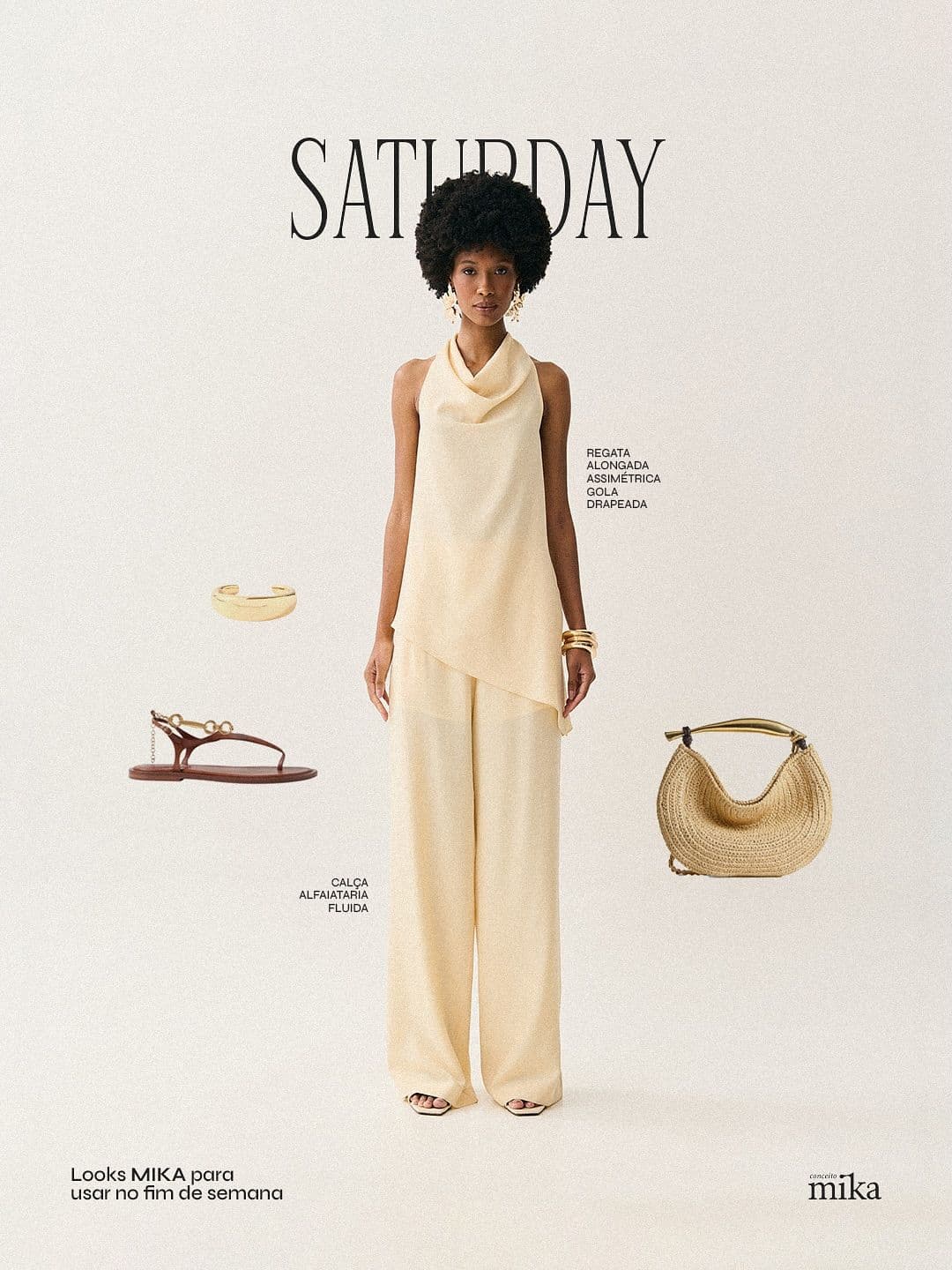
From upload to WooCommerce in minutes
- 11. Connect your WooCommerce storefrontPaste your WordPress site URL. Snapsible extracts brand colors, typography, and product language to train the generations.
- 22. Upload one product photo per SKUA single clean shot is enough. The AI reads material, color, and shape accurately from one source image.
- 33. Generate at 2000x2000 masterChoose Product Photography mode for studio shots or Replicate Reference for lifestyle. Snapsible renders at max resolution so every downstream crop stays sharp.
- 44. Export theme-specific sizesDownload the batch preset for your theme — Storefront, Astra, Flatsome, Divi, or custom. Snapsible exports main, catalog, thumbnail, and hero crops.
- 55. Bulk upload via Media LibraryDrop JPEGs into WordPress Media Library or use Regenerate Thumbnails to refresh existing product images. WooCommerce auto-assigns by filename or product SKU.
Three steps to
studio-quality content
No design skills. No studio. Just your product, your brand, and a reference image.
Set up your Brand DNA
Paste your website URL and we auto-extract your colors, fonts, tone, and style in seconds. Or define it manually.
Pick your references
Upload inspiration images or import directly from Pinterest. AI analyzes the scene, lighting, and composition.
Generate & download
AI places your exact product into the reference scene. Download in any format, or create ad creatives in one click.
WooCommerce-specific tips
What separates AI-looking output from editorial-grade WooCommerce creative.
Always upload at 2000x2000, let WooCommerce downscale
WooCommerce generates its own catalog and thumbnail sizes from your upload. Always upload the master at 2000x2000 — never pre-resize to 600x600 — so product page zoom stays sharp and you avoid blurry thumbnails when themes change.
Match your hero banner to your checkout theme
WooCommerce's conversion drops when the storefront hero and the checkout page feel disconnected. Use Snapsible's brand DNA extraction so the hero banner colors, typography, and mood match the checkout styling your customers will see.
Use the WooCommerce blocks editor with Snapsible 16:9
The new WooCommerce Blocks and FSE themes (like Twenty Twenty-Four) use landscape 16:9 product banners in featured grids. Export a 1920x1080 variant alongside your 1:1 product shot and both slot into the block editor cleanly.
Install Regenerate Thumbnails after bulk uploads
When you update a theme or change image dimensions in WooCommerce settings, old thumbnails stay the wrong size. Run the free Regenerate Thumbnails plugin after uploading a Snapsible batch so every size is refreshed in one click.
Optimize before upload with ShortPixel or WebP Express
2000x2000 JPEGs from Snapsible are ~400KB each. Run them through ShortPixel or convert to WebP before upload to cut file size 60% without losing quality. Your WooCommerce page speed will thank you.
Start free. Scale when ready.
Every plan runs on credits — 5 credits per image. No hidden fees, no confusing tiers.
Try it out, no card needed.
- 50 credits / month
- 10 image generations
- 1 brand profile
- All 6 workflows
For solo creators and founders.
- 500 credits / month
- 100 image generations
- 5 brand profiles
- All 6 workflows
- No watermark
- Commercial license
For growing brands and agencies.
- 1,500 credits / month
- 300 image generations
- Unlimited brand profiles
- All 6 workflows
- No watermark
- Commercial license
- Priority queue
- API access
5 credits per image · All workflows same cost · Credits reset monthly, no rollover
AI product photos for WooCommerce: FAQ
Your References +
Your Brand DNA
= Studio-Quality Content
No designers. No studios. No wasted hours. Just upload, generate, and publish.
Free plan available · No credit card required · Cancel anytime